2.1. Standard Installation
This section outlines how to install the desktop versions of Cyber Triage (Standard, Standard Pro, and Standard Enterpise). If you have a Team (client server) version, then refer to Team Installation and Configuration.
2.1.1. Hardware Requirements
The Standard versions of Cyber Triage® require:
64-bit version of Windows 7 or newer
12GB+ of RAM
4+ CPU cores
100GB+ of free hard drive space (SSD recommended)
Display of at least 1366×768
2.1.2. Software Requirements
You need a copy of the MSI installer. Customers will get download links sent to them for each release. It should have a name such as CyberTriage-4.0.0.msi (if it has a differnet name, it could be for the Team Server or Client).
There are also evaluation copies on the website
2.1.3. Standard Initial Installation Steps
Cyber Triage® is installed on your analysis system, not on the system being investigated. A separate collection tool, which is called the Collector, will be run on the system being investigated.
Run the MSI installer and choose the default settings. Versions after 3.10.0 will automatically uninstall a previous version.
Launch Cyber Triage® from the Start menu or the Desktop icon.
You will see a welcome screen with a choice to either Import License or Start Limited Evaluation.
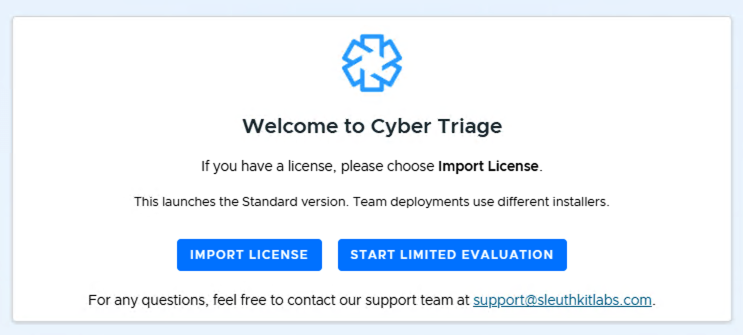
Welcome / License Screen
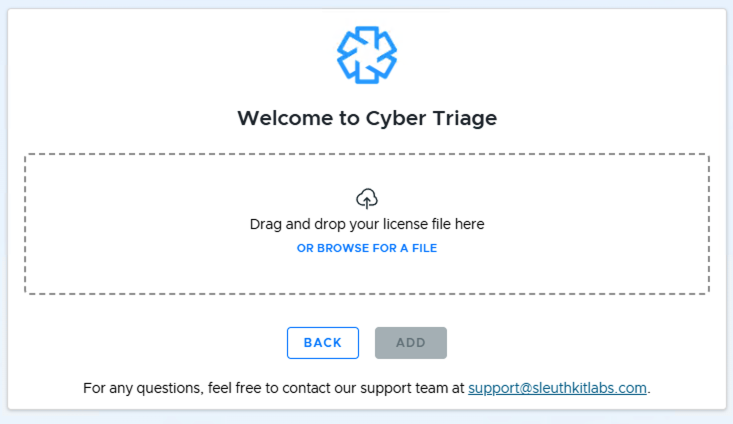
If you are a paid customer or were given an evaluation license, choose Import License. You’ll be prompted to drag and drop your license file, or browse for it.
Alternatively, if you are evaluating, you can choose Start Limited Evaluation to get a free 7-day evaluation. You’ll be asked for some basic information about yourself to activate the evaluation license. See Evaluation Guide for the full evaluation process.
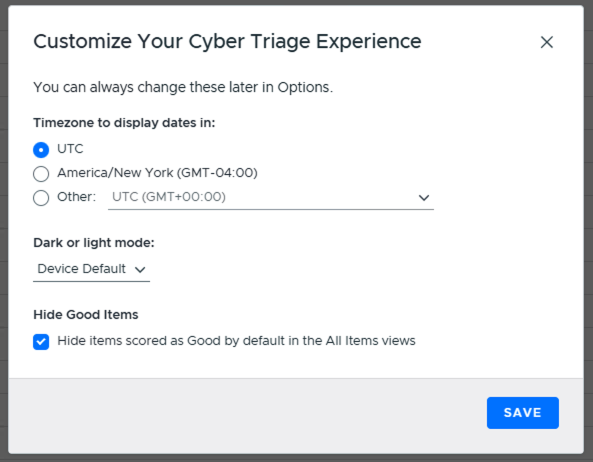
On first launch, you’ll be prompted to customize some display settings: the timezone used to display dates, dark/light mode, and whether to hide items scored as Good by default.
2.1.4. Exclude Data Folder from AV and EDR
You might need to exclude an AppData Cyber Triage folder from scanning by your AV/EDR because it could:
Remove files that contain rules to flag attacker tools
Decrease performance by observing all writes to this folder
The default location is in the your AppData/Local/CyberTriage folder, but you can change it using the steps from Data Folder.
2.1.5. Configuration
Proceed to Setup (Standard and Team) to configure the application.