1.2. UI Overview
This section provides a high-level overview of using the Cyber Triage user interface.
1.2.1. Basic Flow and Navigation
The basic flow of Cyber Triage is:
Home Page: You will see this when you open the application. It shows you a list of incidents.
Incident: All data is contained in an incident. When you have one open, you’ll see its Overview.
Host: From the incident, you can open a host and see its artifacts and results.
There is a breadcrumb in the upper left showing the levels you’ve navigated through (e.g. Home / Incident / Host). Click on any previous level to go back to it - there is no longer a “[close]” button.

There is no more right-click menu on tables. Instead, use the “…” (more actions) button on a row to get a list of actions for that item, such as View in Timeline, View in File Explorer, View in Bad Items Timeline, View in Item Inspector, Export File, Analyze for Malware, Add to Good List, Add to Bad List, and Copy to Clipboard.
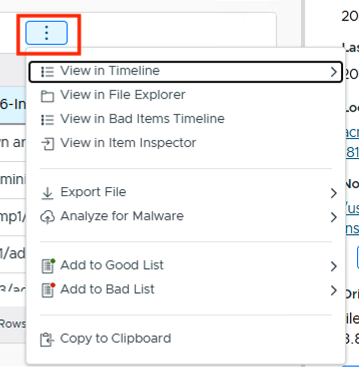
The “…” (more actions) menu
The top menu above a table also changes based on what is selected:
With no rows selected, you get filter and search options (Filters, Find Text, Export CSV).

With a row selected, it changes to actions for that row, such as Score, Comment, & Label, Show Only Same Type and Name, and “…”. Unselect the row to get back to the filters.

1.2.2. The Home Page
When you launch Cyber Triage, you’ll see the Home page.
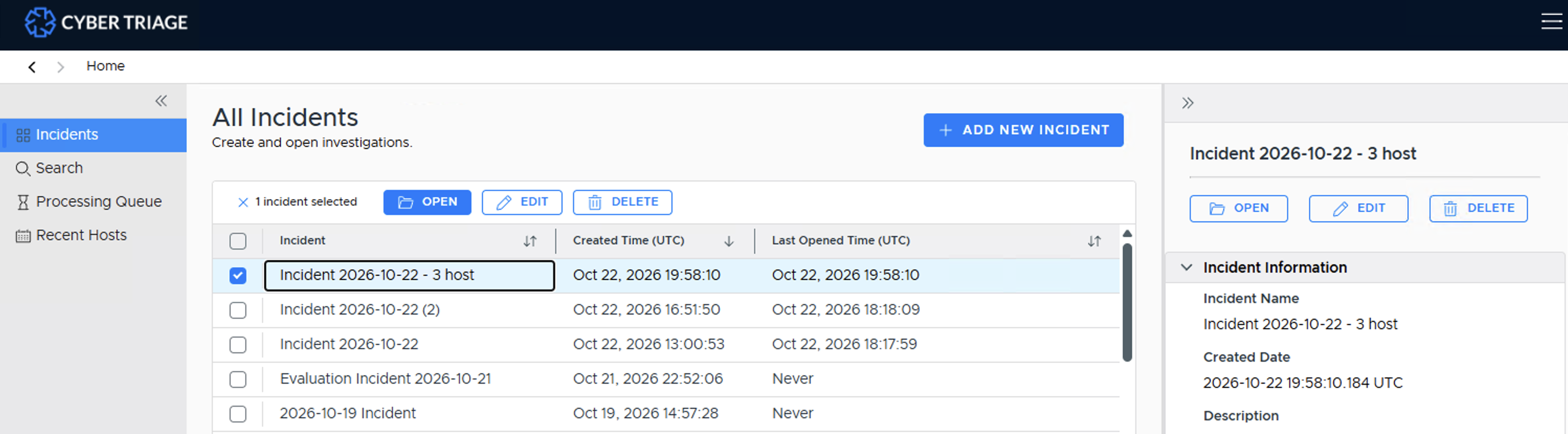
From here, you can:
Add, delete, and edit incidents (see Incident Management)
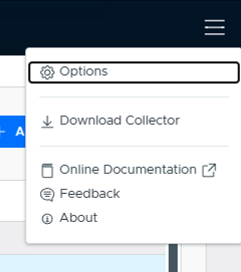
Use the hamburger menu in the upper right to get the Options panel, download the Collector, view documentation, or send feedback.
Search indicators from past incidents (see Global IOC Search)
The left-hand navigation and the right-hand item detail panel each have a collapse arrow, so you can hide them to focus on the table in the middle.
1.2.3. Incident
When you have an incident open, you’ll see its Overview, with processing status, a Hosts panel, a Notable Items panel, and a GenAI Overview. This is your starting point for deciding which host to open and examine.
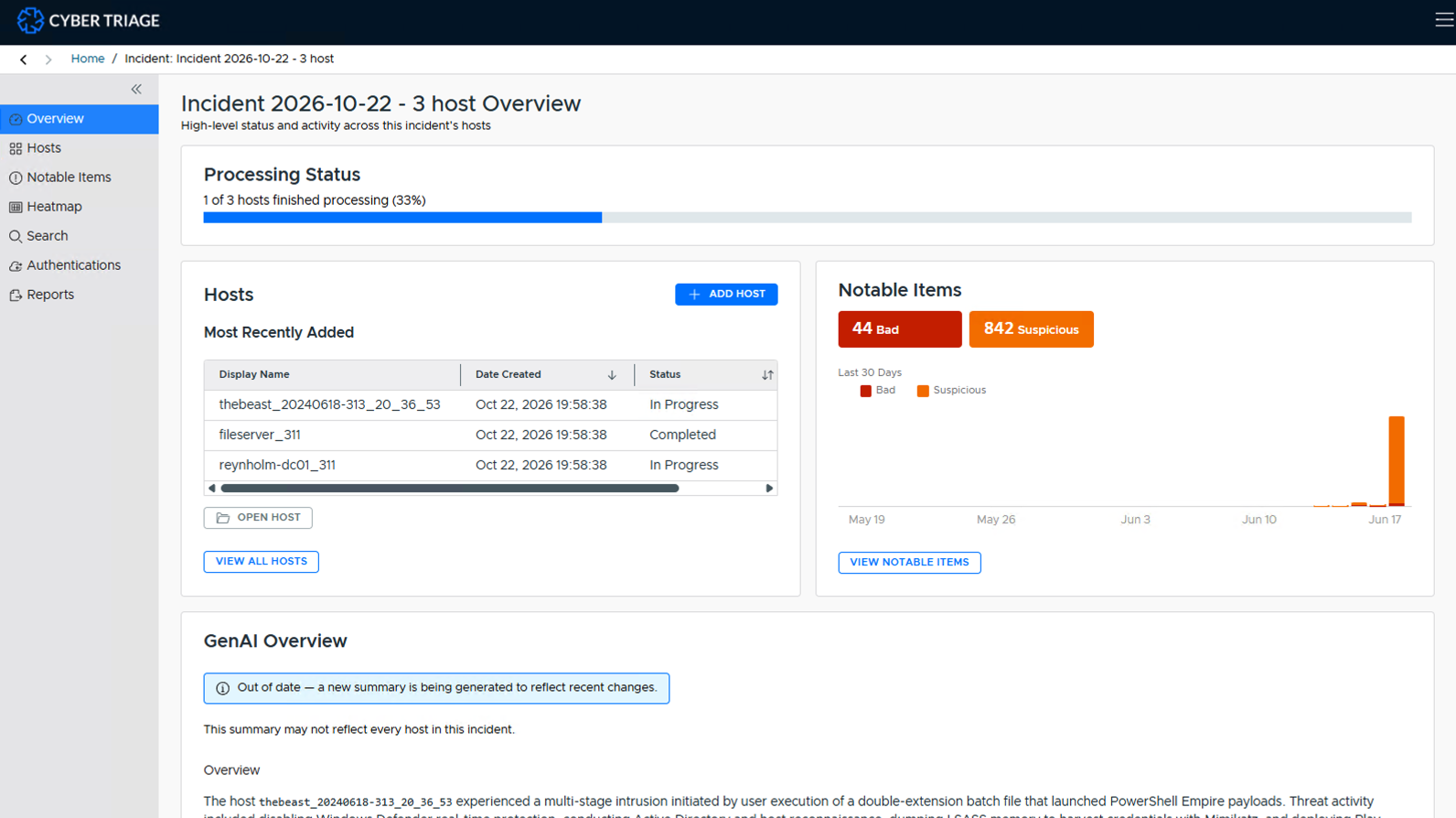
The left-hand navigation has a panel for each kind of incident-level analysis:
Overview: The landing page shown above - status, hosts, Notable Items, and the GenAI Overview.
Hosts: The full list of hosts in the incident, including each host’s Bad count, to help prioritize which to examine first.
Notable Items: All Bad and Suspicious items across every host in the incident, sorted by time.
Heatmap: Notable activity by host and day, to help decide which host to focus on first.
Search: Search all host data for text, IOCs, or a specific artifact type, across the whole incident.
Authentications: Domain Controller authentication data (if a domain controller was added), to help detect lateral movement.
Reports: Generate incident-level reports.
Incident-level Examination provides more details about what kind of analysis can be performed from this UI.
1.2.4. Host
When you open a host, you’ll see its Overview tab, with the workflow tabs, analysis status, Notable Items counts, and a GenAI Summary.
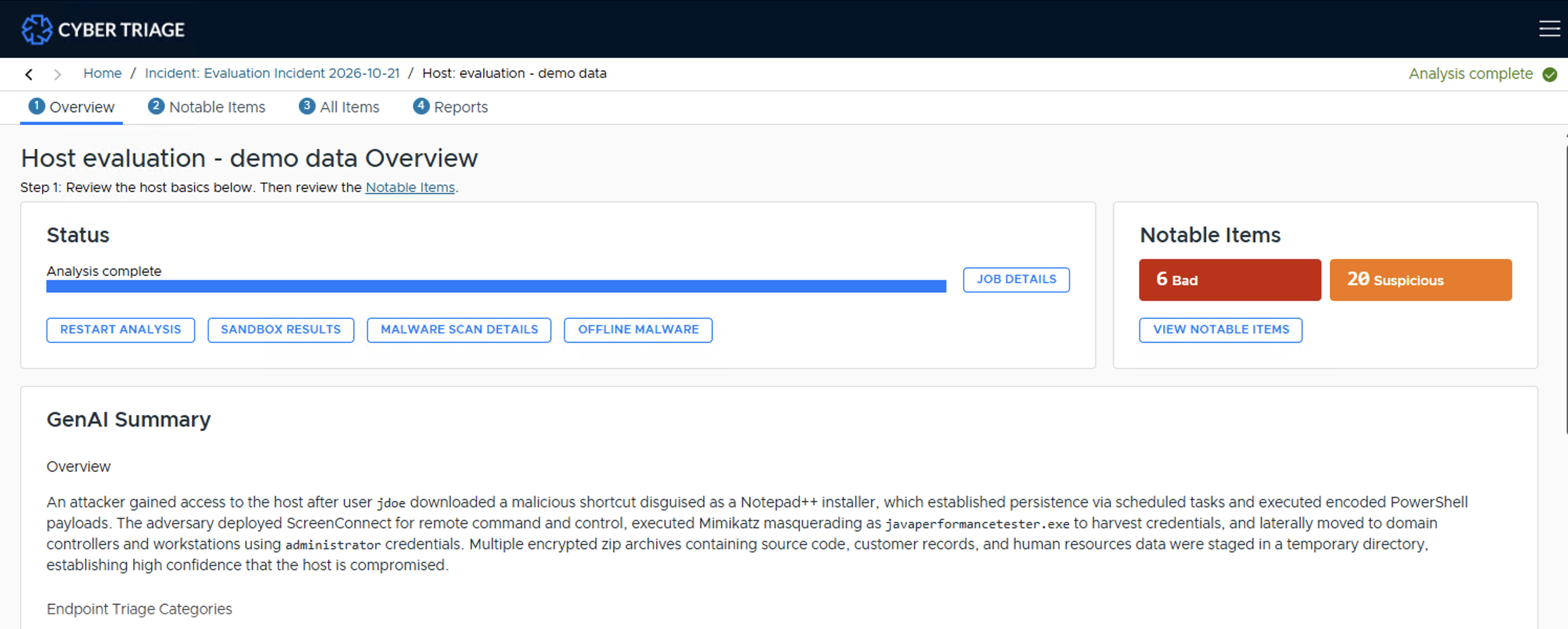
The workflow tabs at the top of a host walk you through each kind of host-level analysis:
Overview: The landing page shown above - a quick understanding of the host in five minutes or less.
Notable Items: Review and score the items Cyber Triage automatically flagged as Bad or Suspicious.
All Items: Dive into individual artifacts, even ones that weren’t automatically flagged.
Reports: Generate host-level reports.
Host-level Examination provides more details about what kind of analysis can be performed from this UI.
1.2.5. Decision Making
At various points, you’ll need to decide if an item is actually Bad or Good. Cyber Triage has several tools to help with this:
Item Inspector: A full-screen, deep-dive view of a single item - its details, related items on the same host, and other occurrences across the incident. See The Item Inspector for details.
Timeline: See what happened immediately before and after an item’s event to understand the context around it.
File Explorer: Browse the file system directly to see a file in its original location alongside its neighbors.