3.5.1. UI Concepts
The previous UI Overview section outlined the breadcrumb at the top of the interface. This section outlines more general concepts you’ll see.
3.5.1.1. Summary Panel
Many UIs in Cyber Triage are tables. You’ll find the primary actions and details for a selected item in a right-hand summary panel.

When reviewing artifacts, the top level buttons will bring you to either:
Bad Items Timeline: To see where this event occurs amongst the other known bad items
The Item Inspector: To learn more about the details and related items.
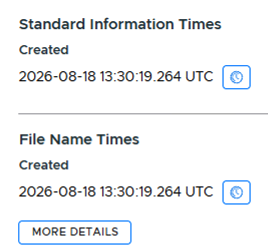
Within the panel, you can select the clock to bring you to that item in the timeline.
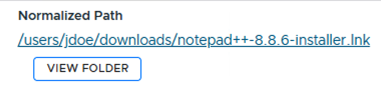
Or use the “View Folder” button to see the item in the File Explorer.
You can collapse this at any time.

3.5.1.2. Table Actions
You can also perform actions on a row in a table with buttons above the table or the “…” (more actions) button.
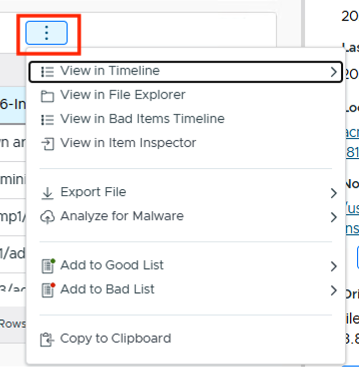
The “…” (more actions) menu
The top menu above a table changes based on what is selected:
With no rows selected, you get filter and search options (Filters, Find Text, Export CSV).

With a row selected, it changes to actions for that row, such as Score, Comment, & Label, Show Only Same Type and Name, and “…”. Unselect the row to get back to the filters.
