5.4.1. AWS S3
Cyber Triage will work on other S3-compatible services, but we do not cover configuration here. This section is for AWS only.
5.4.1.1. Create a Bucket
You will need to create a bucket for the Collector to upload to. You can create a bucket in different regions if your business requires that.
From the AWS Console, choose “S3” and then select “Create Bucket”.
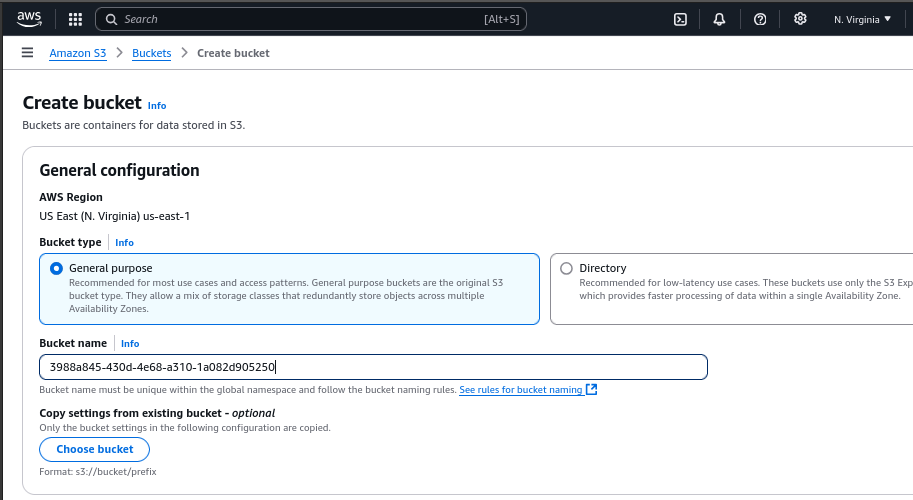
For most use cases you can stick with the default settings and simply pick the bucket name. Bucket names are global and the recommended practice is to use GUIDs to avoid collisions and prevent people from guessing them.
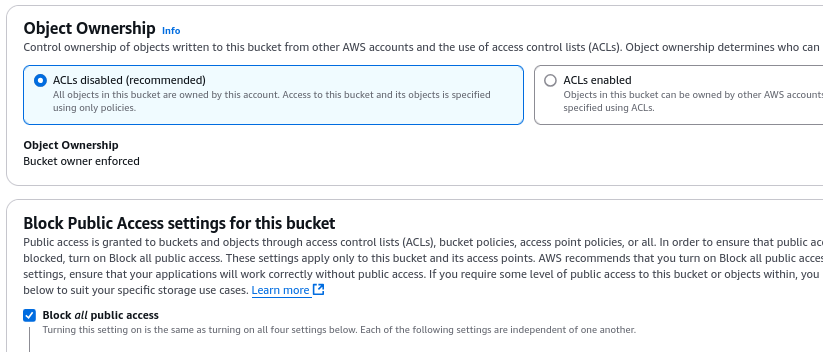
Ensure that public access to the bucket is disabled.
5.4.1.2. Create the Manager Account
This account is optional, but needed if you want Cyber Triage to be able to directly download files and process them. Review this section though because it’s the same process to create the required Upload account.
Users can span regions, so a user can have access to multiple buckets in multiple regions.
5.4.1.2.1. Create the Manager Policy
In the AWS Console, go to the “Identity and Access Management (IAM)” section.
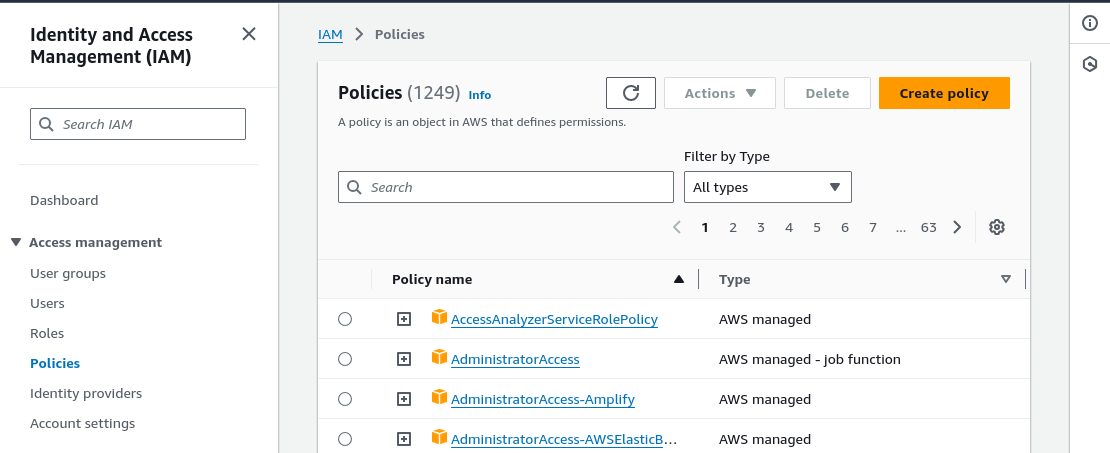
Press “Create Policy”.
Choose the “S3” service
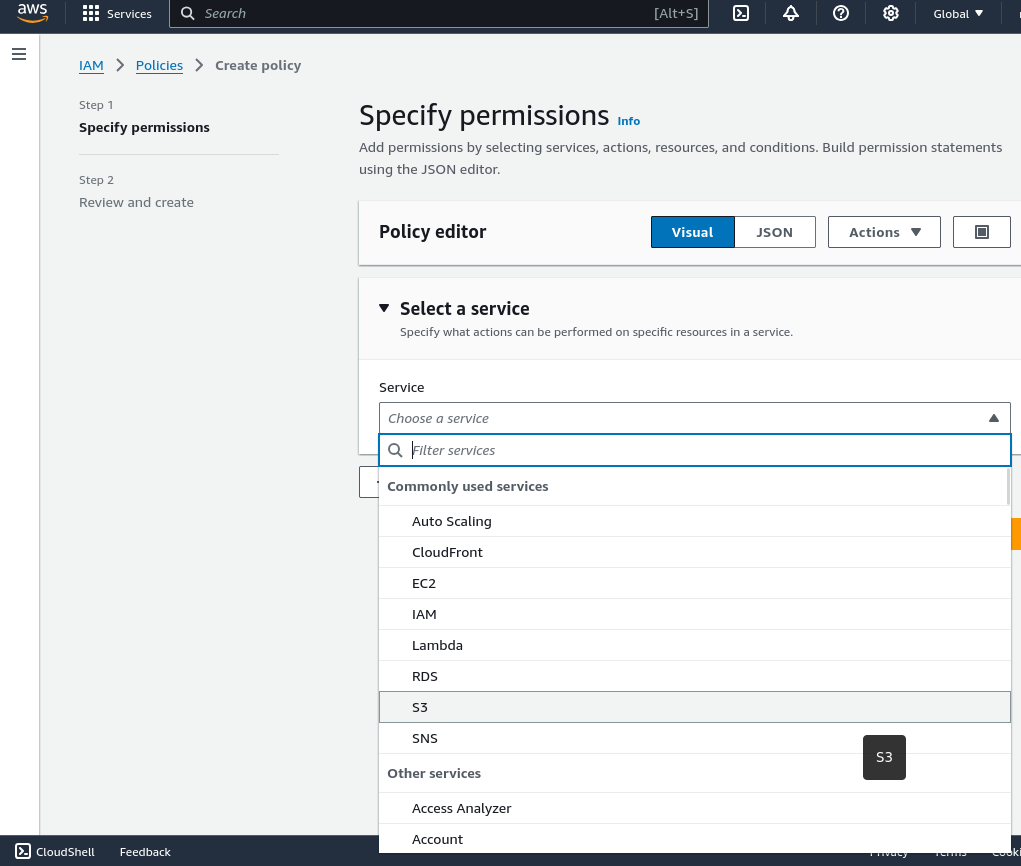
- Set what actions will be allowed. The Manager role should have:
ListBucket
GetObject
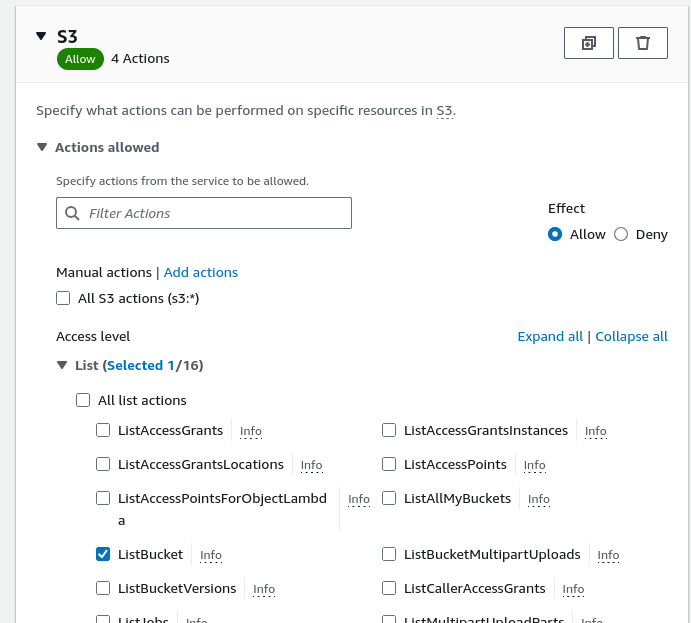
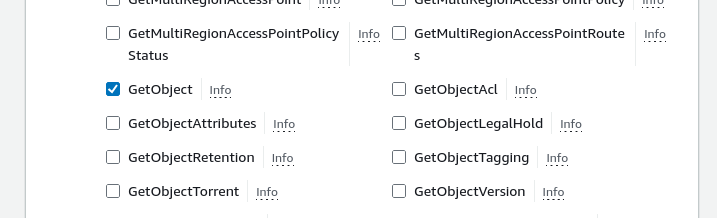
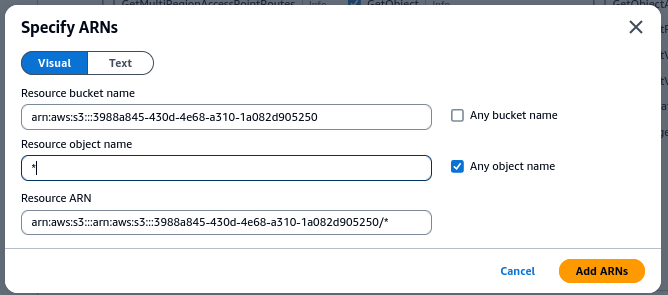
Limit the actions to the bucket that was previously created by going to Resources and choosing to “Add ARNs” for a bucket.
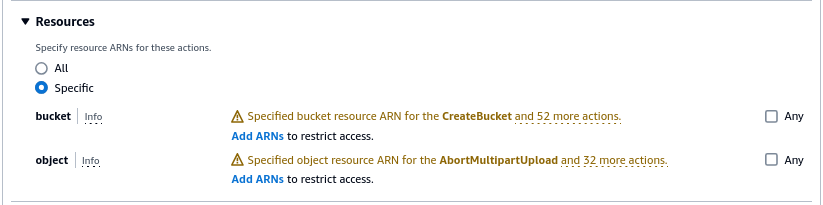
Add the bucket name
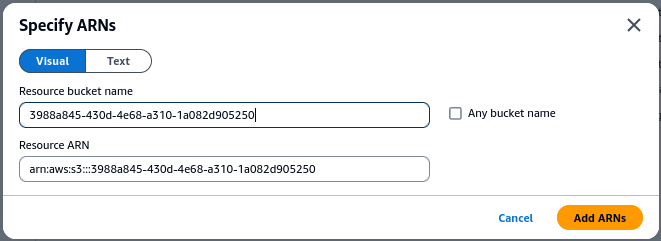
And then add a * to allow access to all objects in the bucket
Lastly, assign the policy a name, such as “CT-manager-policy”.
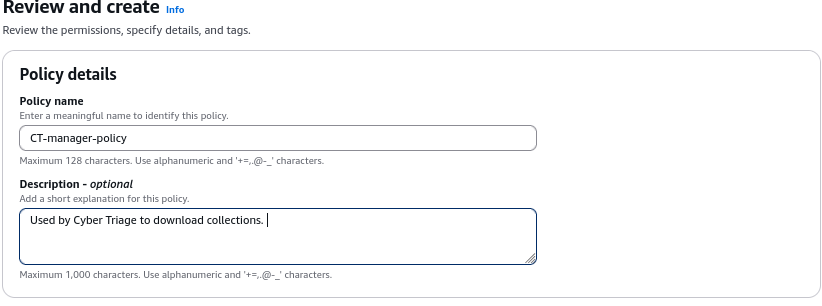
As you add more buckets for use by Cyber Triage, you can add those buckets to the profile.
Alternatively, the following template can be used:
{
  "Version": "2012-10-17",
  "Statement": [
      {
          "Effect": "Allow",
          "Action": [
              "s3:GetObject",
              "s3:ListBucket"
          ],
          "Resource": [
              "arn:aws:s3:::<bucket name>/*",
              "arn:aws:s3:::<bucket name>"
          ]
      }
  ]
}
5.4.1.2.2. Create the Manager User
After the policy is created, we can make the manager user.
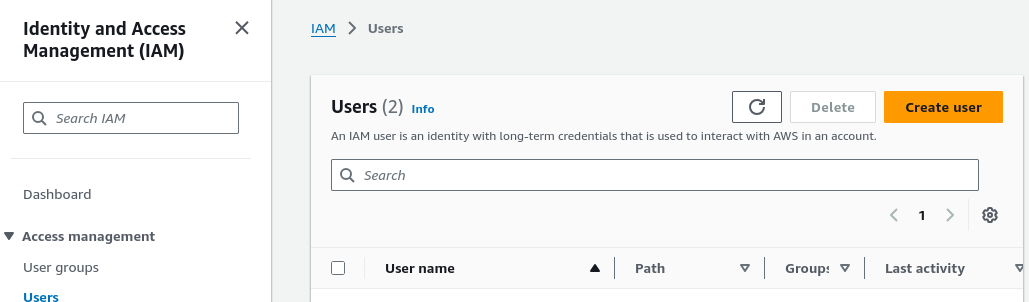
From the AWS Console, go to IAM and Users.
Choose to “Create User”
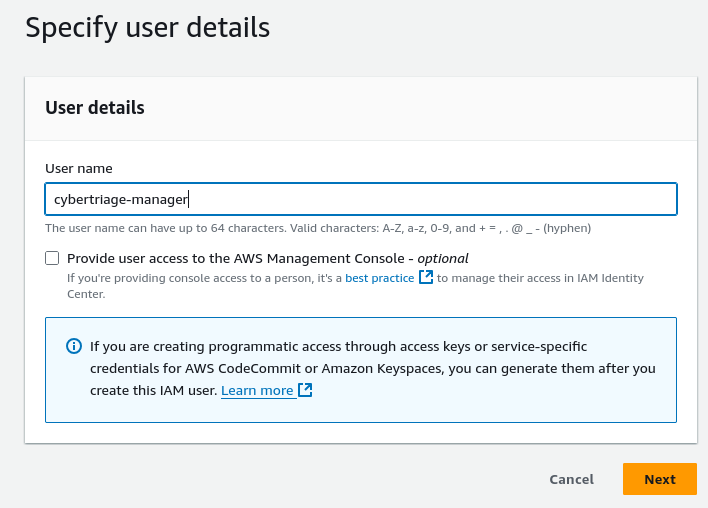
Assign a name, such as “cybertriage-manager”
Attach the previously created policy to the user, by specifying “Attach policy directly” and searching for the policy by name.
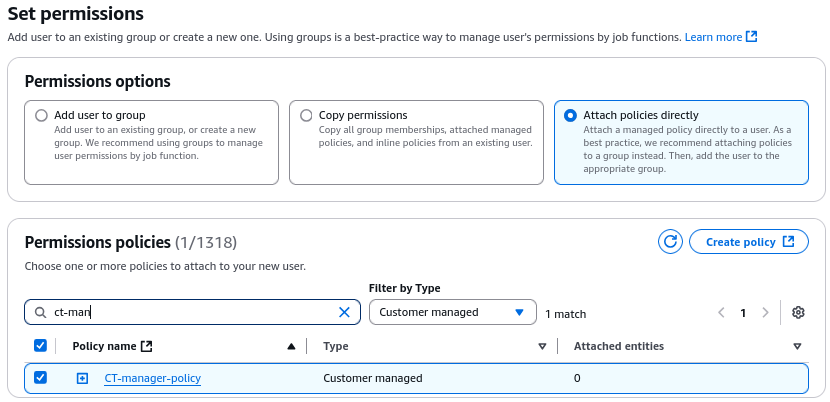
Press Next and the user will be created.
5.4.1.2.3. Create an Access Key for the Manager User
For Cyber Triage to use this account programmatically, an access key must be created.
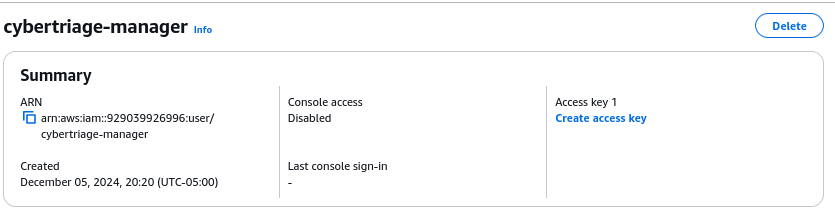
From the Users section in IAM, select the user, such as “cybertriage-manager”.
Choose to “Create access key”
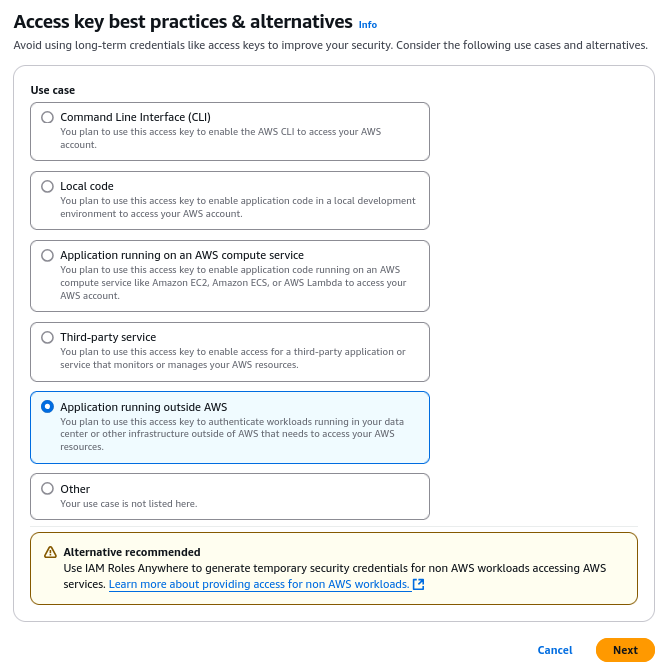
Choose “Application running outside AWS”
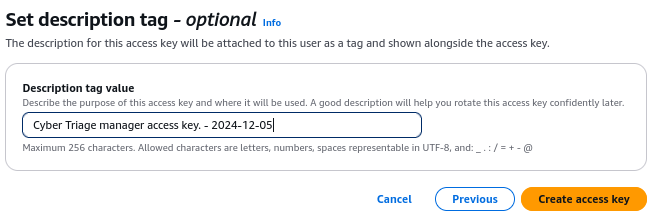
To make managing this easier, we suggest giving the key a name and putting in the date.
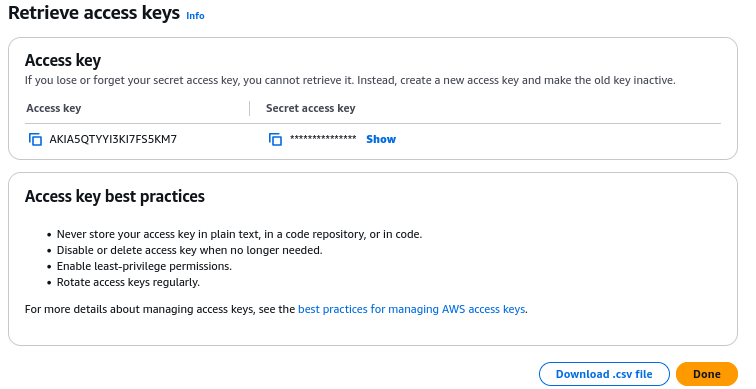
Once the key is created you will need to immediately save it because you cannot access it later. If you lose the secret you will have to create a new access key. A user can have up to two access keys at a time.
5.4.1.3. Create the Upload Account
To create the upload account, you’ll repeat the same steps as for the Manager, but use different settings for the policy.
Create an upload policy (see below)
Create an upload user that uses the upload policy and has access to only the single bucket.
Add an access key to the upload user
The upload policy needs only:
PutObject
PutObjectACL
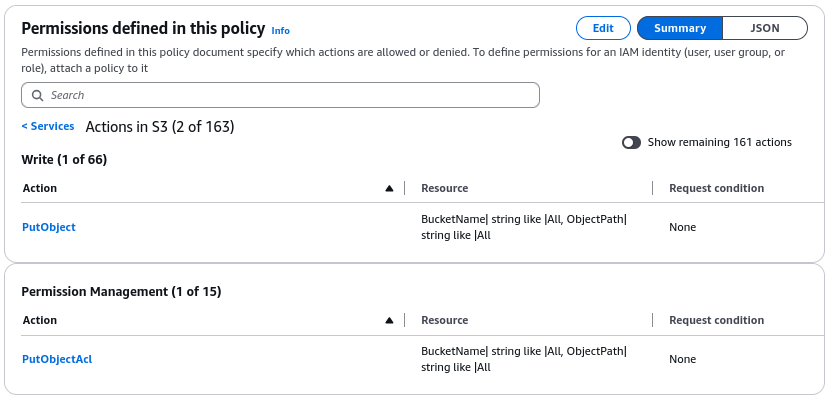
Or use the following policy template:
{
  "Version": "2012-10-17",
  "Statement": [
      {
          "Effect": "Allow",
          "Action": [
              "s3:PutObject",
              "s3:PutObjectAcl"
          ],
          "Resource": [
              "arn:aws:s3:::<bucket name>/*",
              "arn:aws:s3:::<bucket name>"
          ]
      }
  ]
}
5.4.1.4. Secure the Upload Account
Because the upload account will be shared around when the Collector is deployed, there are some things that you can do to minimize the risk that someone accesses it and uploads excess data to your account.
Rotate the access keys regularly. Follow the steps above to periodically change the key, similar to changing a password.
Use a temporary Session Token. This creates a temporary user account that will be active for up to 36 hours. This requires some additional setup and not for beginners. It uses the AWS Command Line Tool.