5.4.2. Azure Blob Storage
Cyber Triage supports Microsoft Azure Blob Storage for storing and retrieving collections.
There are two options for providing Collector upload credentials:
Shared Access Signature (SAS) URL (recommended) — Scoped to a single container with specific permissions and a configurable expiry time. Easier to set up and more secure.
Account Access Key — Grants access to all containers within the storage account. Simpler but broader in scope; keys must be rotated promptly after collection.
Note
If your organization has Microsoft Entra ID Premium P1 or P2, a third option using custom role assignments is available to create a more narrowly scoped upload account. Full instructions for that approach are not covered here.
5.4.2.1. Create a Storage Account
You will need to create an Azure Storage Account as the top-level resource for blob storage.
Log on to the Azure Portal with your Microsoft administrator account.
Open Storage Accounts and click Create.
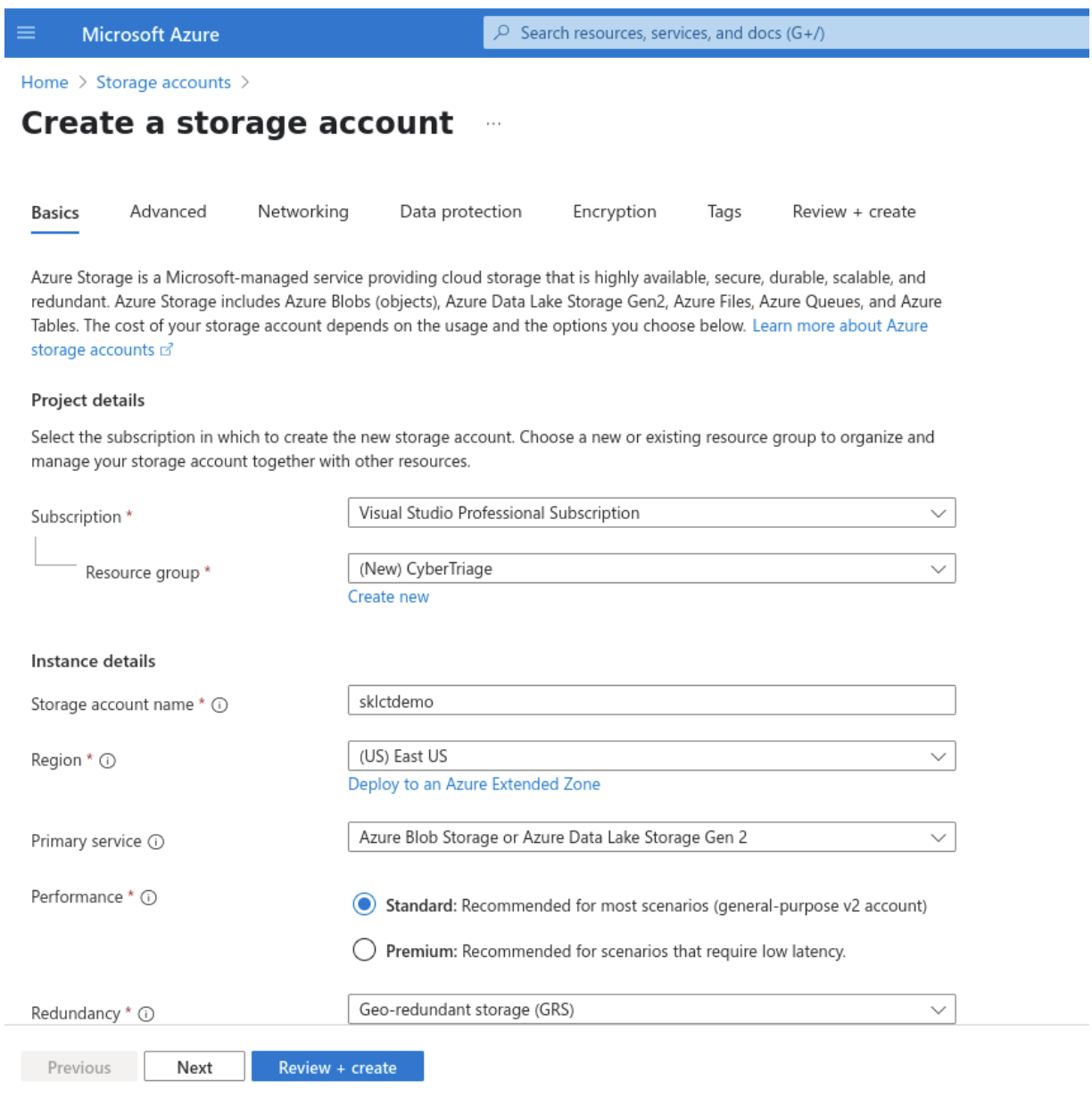
Enter values for:
Resource Group — We recommend creating a unique resource group for Cyber Triage collections.
Storage account name — Only lowercase letters and numbers are allowed.
Region
Primary Service — Azure Blob Storage is recommended.
Performance
Redundancy
Click Next. The options on the second page can be left at their defaults.
Click Create to finish.
5.4.2.2. Create a Blob Container
Within the storage account, create a container where collections will be stored.
Navigate to the new Storage Account (click Go to resource).
Go to Data Storage → Containers.
Click + Container.
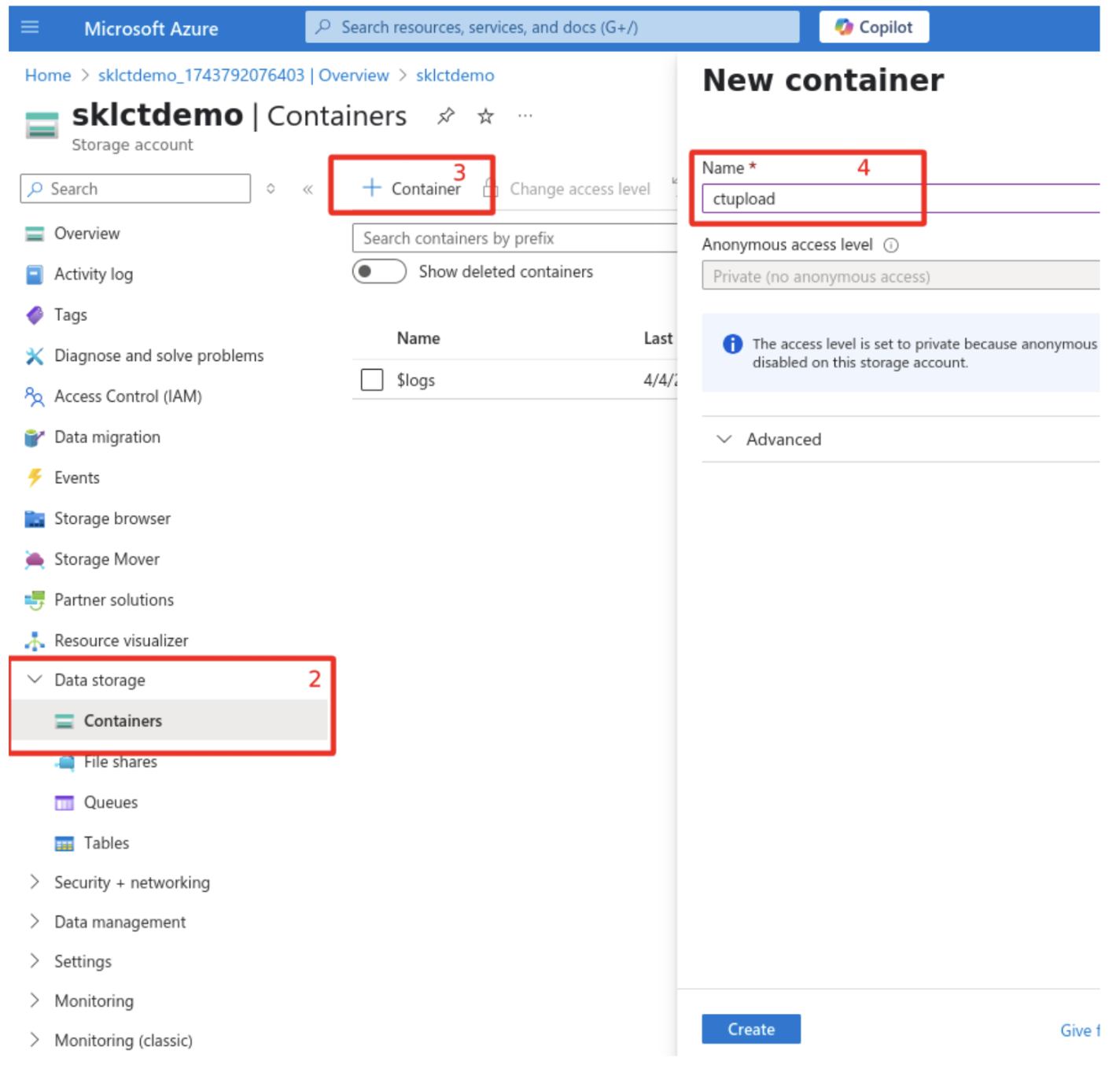
Enter a name for the container.
Leave Anonymous access level set to Private.
5.4.2.3. Create the Manager Account
The Manager account allows Cyber Triage to list and download collections from the container.
5.4.2.3.1. Create an Access Key for the Manager
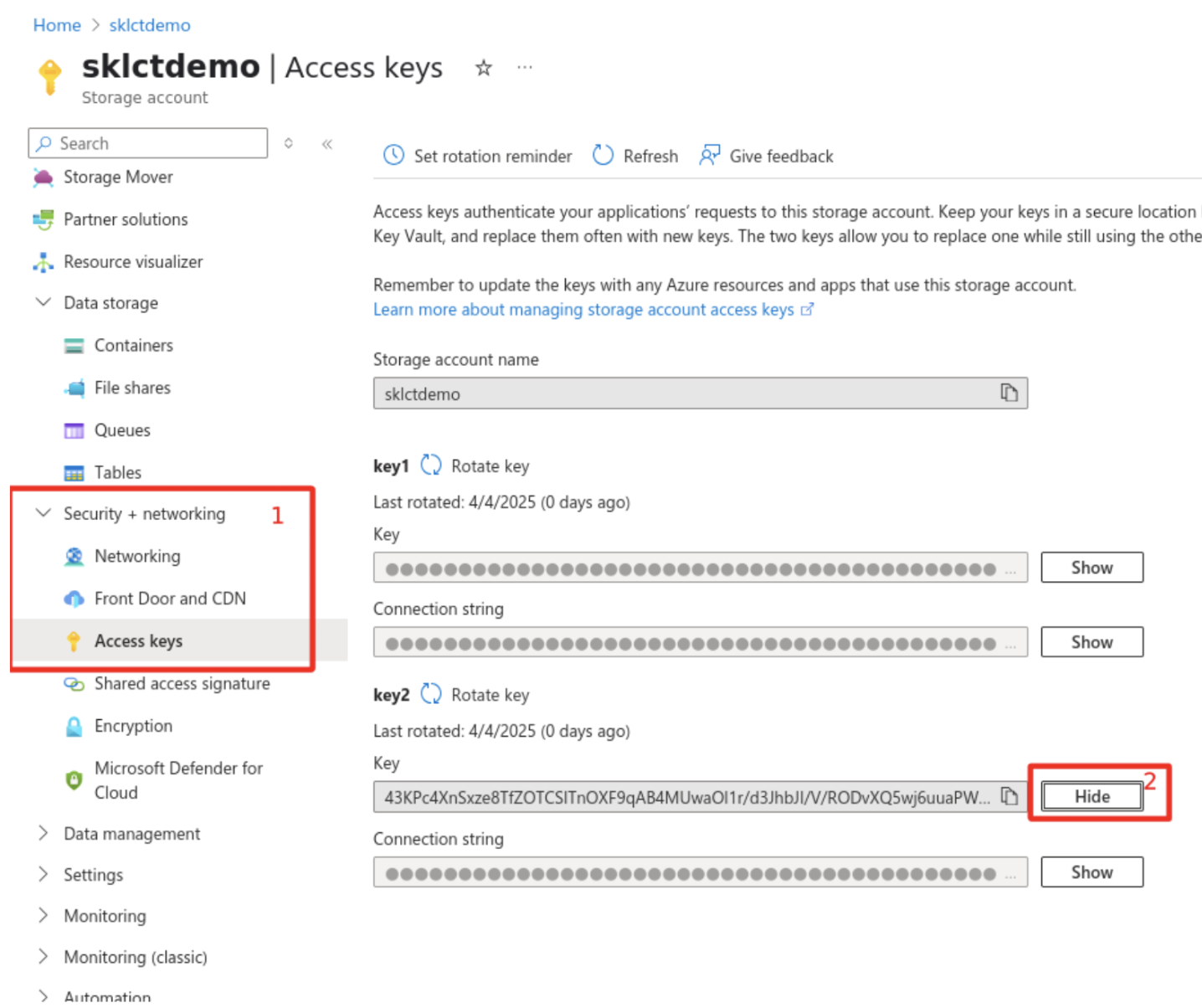
In the Azure Portal, open your Storage Account.
Go to Security + networking → Access Keys.
Click Show next to key2 and copy the key value so that you can enter it into Cyber Triage.
5.4.2.4. Create the Upload Credentials
You have two options for creating credentials that can upload.
5.4.2.4.1. Option 1: Shared Access Signature (SAS) URL (Recommended)
A SAS URL grants time-limited, permission-scoped access to a single container. This is the preferred approach because it limits exposure if the credentials are compromised and has a built-in expiry.
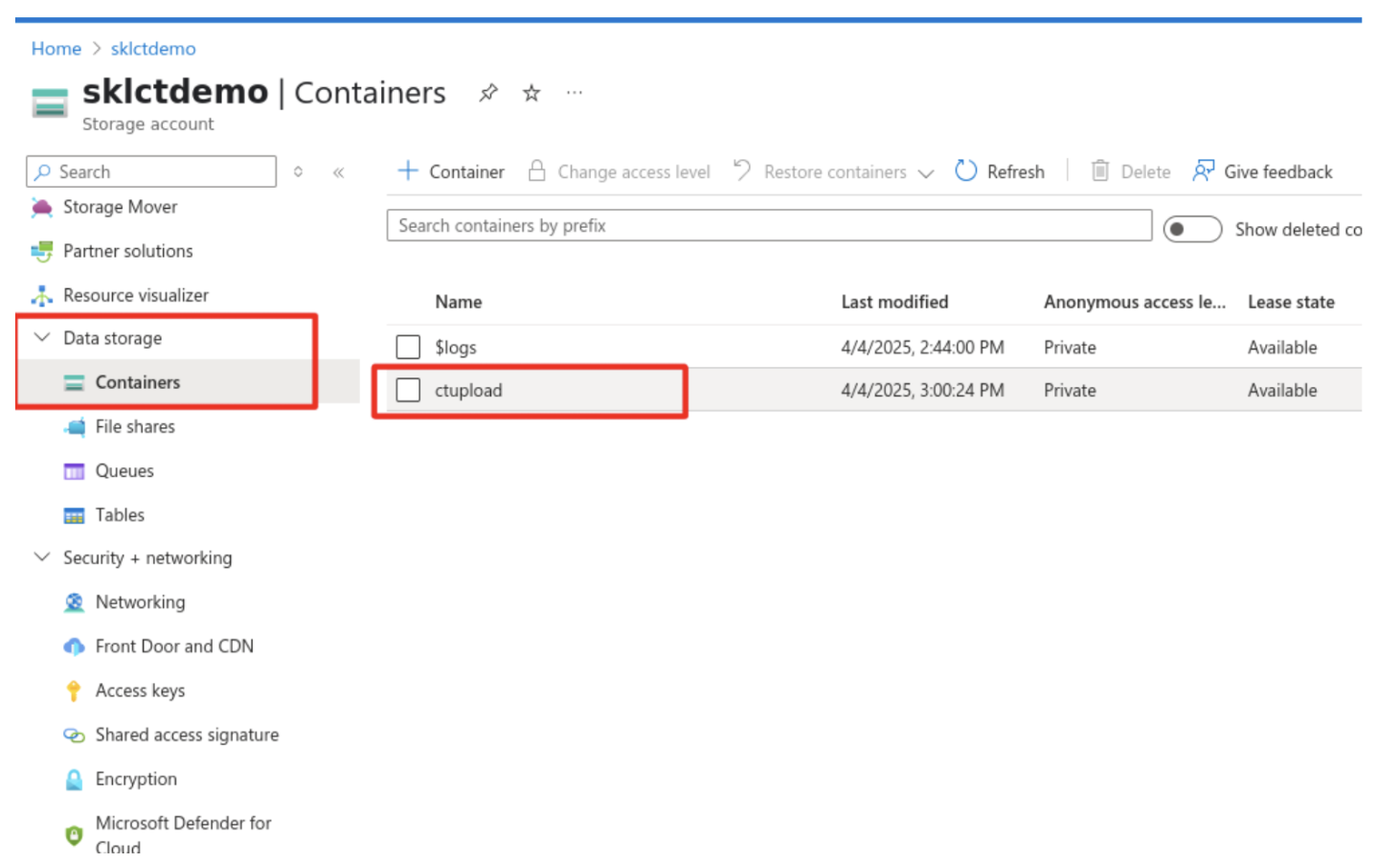
In the Azure Portal, go to Data Storage → Containers and select your container.
Open Settings → Shared Access Tokens.
Configure the following:
Leave Signing key set to Key 1.
Set Permissions to Add and Write.
Set an appropriate expiry time frame.
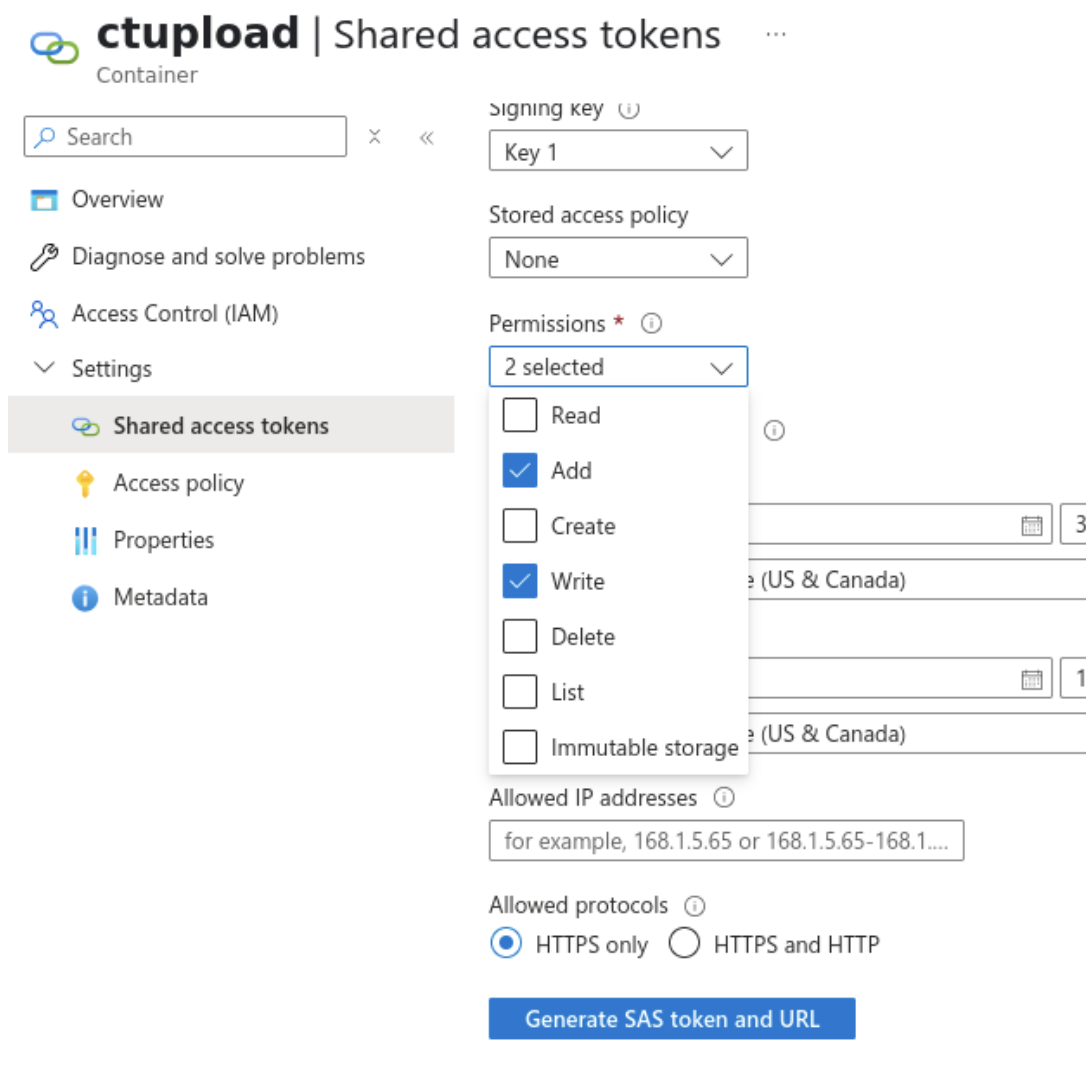
Click Generate SAS token and URL.
Copy the generated Blob SAS URL and paste it into Cyber Triage as the Collector Upload Credentials.
5.4.2.4.2. Option 2: Access Key
Access keys grant access to the entire storage account (all containers), not just the one used for Cyber Triage. If you use this approach, keys must be rotated as soon as collection is complete and the account should be monitored for unauthorized access.
Follow the same steps as for the Manager access key above, but use Key 1 instead.
In Cyber Triage, under Collector Upload Credentials, select Access Key and paste the key into the appropriate fields.
5.4.2.5. Secure the Upload Credentials
Because the upload credentials will be deployed with the Collector onto potentially compromised systems, take steps to minimize risk.
Use SAS URLs when possible. The built-in expiry means that even if the URL is leaked, access ends automatically at the configured time. Set the expiry to the shortest window that covers your collection campaign.
Rotate access keys regularly if using Option 2. Treat key rotation like a password change and rotate immediately after each collection campaign completes.