2.2.5. Install and Configure Cyber Triage Clients
Investigators can access the server using either an installed client on their computer or using a web browser. See Web Browser vs Installed Clients.
To access the server in your browser, go to https://SERVER:9443/app.
If you get an error about CT_AGENT_RUN, then you went to the wrong port.
2.2.5.1. Installing the Team Client
The Team Client installer can be downloaded after logging into the server via a web browser.
Open the “hamburger” menu in the upper right and choose Download Team Client.
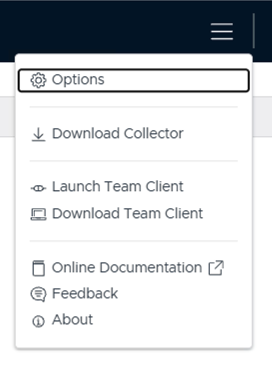
This opens the Set Up the Team Client dialog. KEEP THIS OPEN.
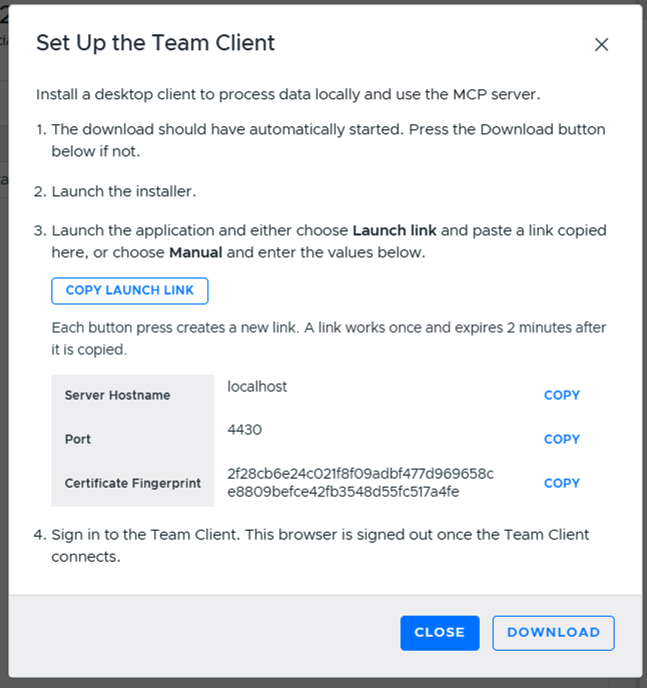
The download should start automatically. Press Download if not.
Launch the installer. It installs per-user, with no admin rights needed, at %LOCALAPPDATA%\Programs\CyberTriageTeamClient.
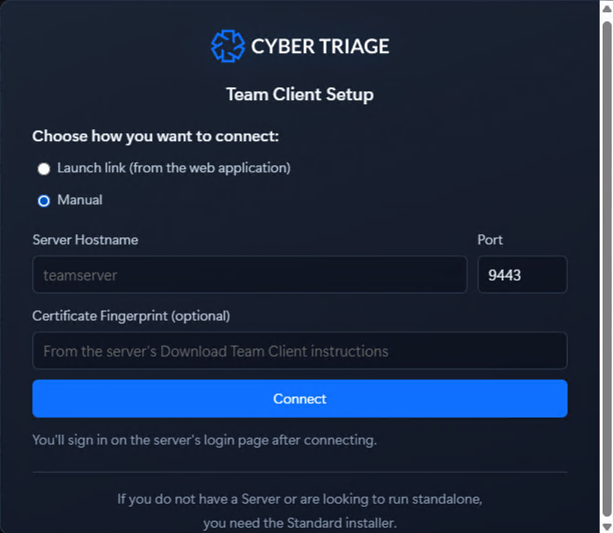
Launch the application and it will prompt you about how to login:
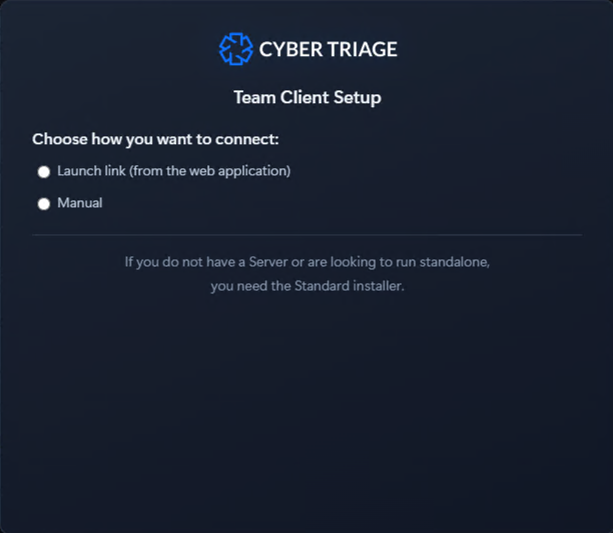
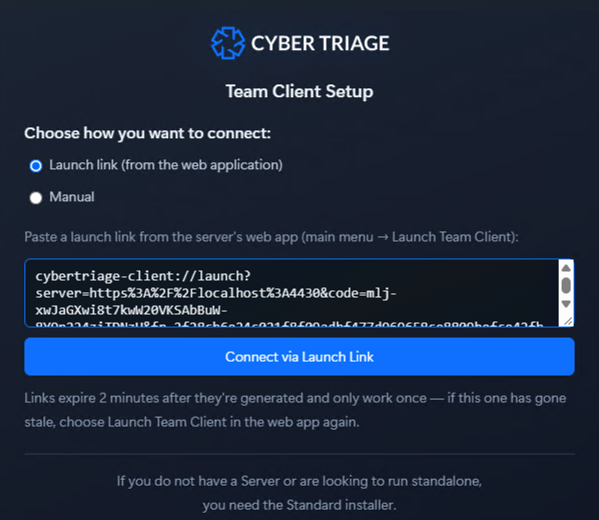
Launch link is the easiest. Go back to the web browser, chooose “Copy Launch Link” and then paste that into your installed client. The Launch links are good for only 2 minutes, so you may need to get a new one.
Manual: enter the Server Hostname, Port, and optionally the Certificate Fingerprint. These values were given to you from the download web page. You’ll need to then sign into the server’s login page after connecting.
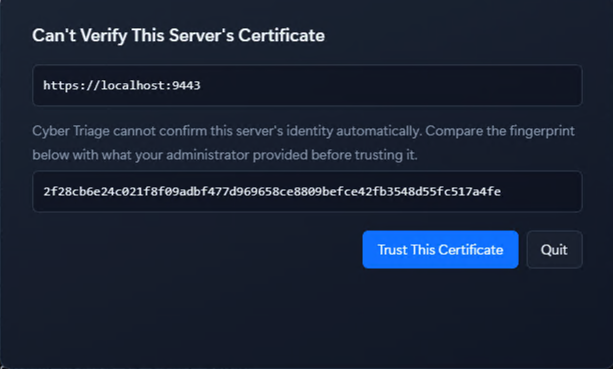
If the client can’t automatically verify the server’s certificate, you’ll be prompted to compare the fingerprint shown against the one from the Options panel before trusting it.
The browser is signed out once you login via the installed client.
2.2.5.2. Launching an Installed Team Client
Once installed, there are two ways to use the Team Client:
Launch it directly (e.g. from the Start Menu) - you’ll need to log in each time.
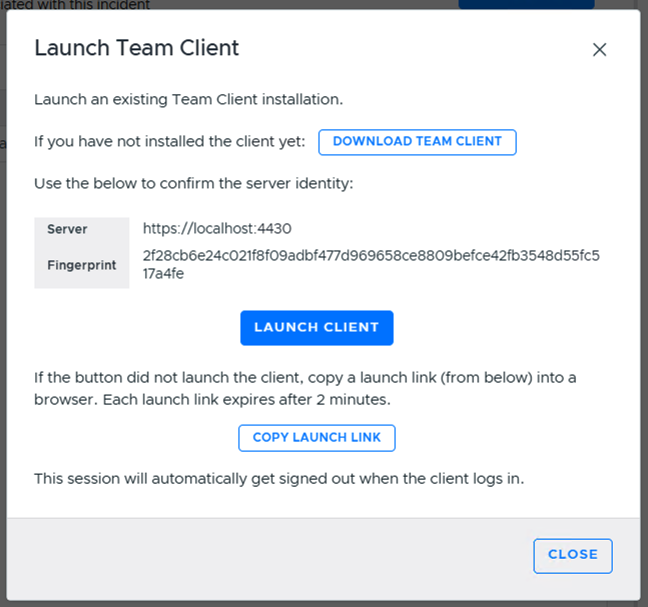
From the web app, open the hamburger menu and choose Launch Team Client. This should automatically launch the installed version and signs you in. If the button doesn’t launch the client, use Copy Launch Link instead and paste it into the client manually. This browser session signs out once the client logs in.
The Team Client does not save credentials between sessions - every launch, direct or via the web app, requires either a fresh login or a fresh launch-link handoff.
2.2.6. Exclude Team Client Install Folder from AV and EDR
You may need to exclude the Team Client’s install folder from scanning by your AV/EDR, for the same reasons as the data folder (see Exclude Data Folder from AV and EDR). By default, it is installed per-user at:
%LOCALAPPDATA%\Programs\CyberTriageTeamClient