4.1. Network
4.1.1. Listening Ports
Some environments limit network traffic and therefore it is important to know how Cyber Triage communicates on a network to allow its traffic. The behavior of the Cyber Triage application is different depending on if it’s Standard, Team Server, or Team Client.
4.1.1.1. Standard: Listening Network Ports
The Standard versions of the Cyber Triage application will occasionally open network ports when collecting data from remote systems using the Network - PsExec or Network - Manual methods. Other methods of adding data do not require listening network ports.
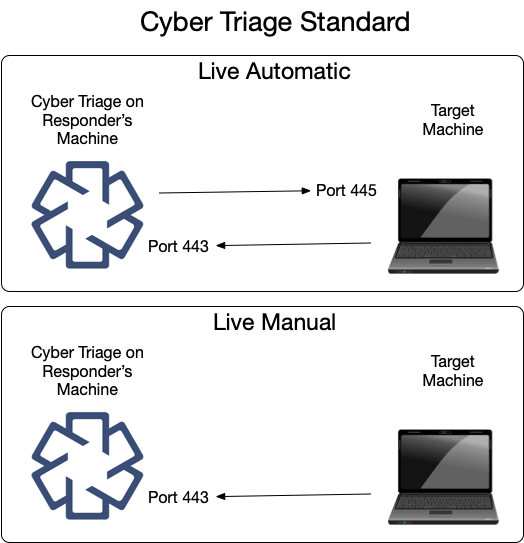
The same data is shown here in table form.
Ports Opened on Cyber Triage Machine |
||
|---|---|---|
Protocol |
Port(s) |
Usage (Inbound from) |
TCP |
443 |
The Collector connects to Cyber Triage on this port. |
You can change this port in the Options panel. See Changing Port Number.
4.1.1.2. Team Server: Listening Network Ports
The Team server opens several ports for communication with clients and target systems. Not all ports are always listening. Port 443, by default, is configured to open only when certain types of collections are happening.
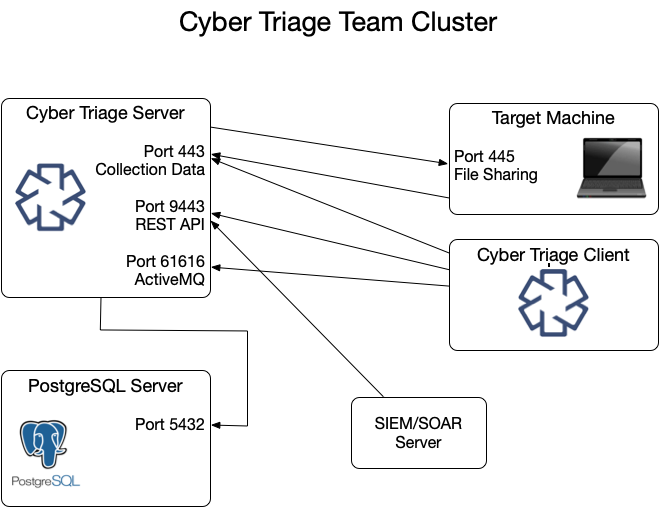
These ports are represented in various tables below.
Listening Ports on Cyber Triage Server |
||
|---|---|---|
Protocol |
Port(s) |
Usage (Inbound from) |
TCP |
443 |
The Collector and clients connect to the server over this port to upload data. |
TCP |
9443 |
The web app (browser access) and REST API clients use this port to retrieve data and initiate collections. |
You can change the 443 port in the Options panel. See Changing Port Number.
It is possible, but not typical, to change the web app/REST API port.
To access the web app, point a browser at https://<server-hostname-or-ip>:9443/app/index.html. Since the server uses a self-signed certificate by default, your browser will show a certificate warning that you’ll need to accept (see Using a Custom Certificate if you want to configure a trusted certificate instead).
Open up %appdata%\cybertriage\config\config.yml on the Cyber Triage® Server machine
Edit the port number for restApiPort or activeMQPort and save the file
Follow the same process to update the port on each of the Cyber Triage® client machines.
4.1.1.3. Team Client: Listening Network Ports
A Team Client will not have any listening ports. It will make connections only to the Team Server.
4.1.1.4. PostgreSQL Server: Listening Network Ports
The Cyber Triage Server will need to communicate with the PostgreSQL installation. If you installed PostgreSQL on a system other than the server, then you’ll need to make sure they can communicate.
Default PostgreSQL Port |
||
|---|---|---|
Protocol |
Port(s) |
Usage (Inbound from) |
TCP |
5432 |
Default port PostgreSQL server listens on |
4.1.1.5. Changing Port Number
Cyber Triage® will open TCP port 443 so that the Collector can send data to it over the network. If you have another application that is using that port, then you can configure Cyber Triage® to use a different one by going to the Options panel and choosing “System” / “Network”.
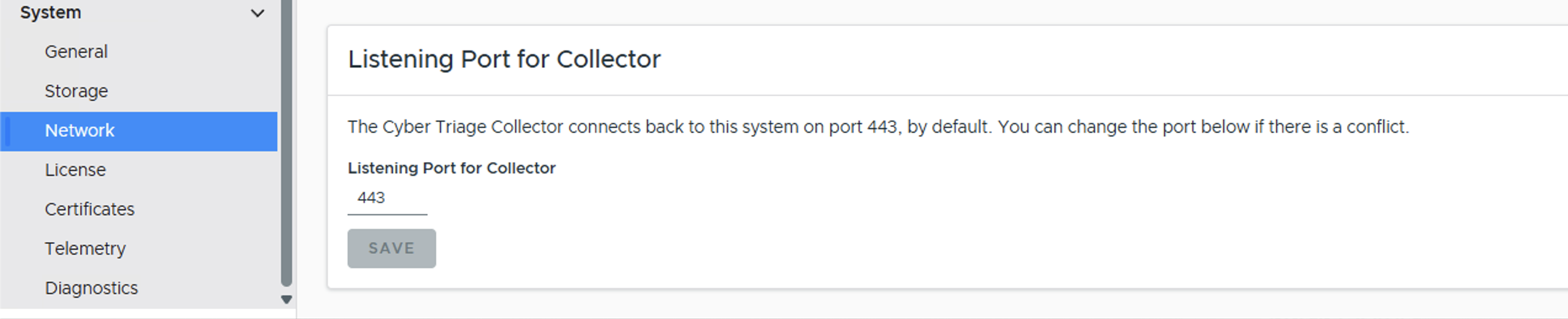
Options (Network Settings)
If you change the port number, you will need to explicitly specify this port number when you manually run the Collector.
4.1.2. Outbound to External Hosts (Standard and Team)
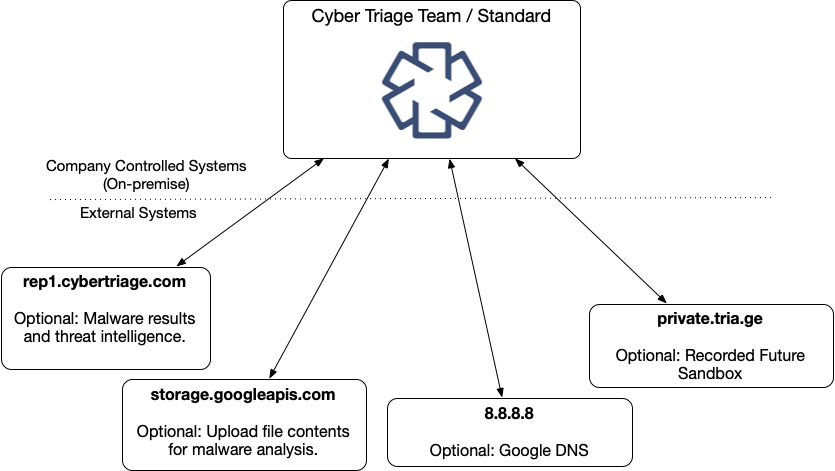
Cyber Triage will reach out to some hosts to test network settings or upload file hashes and content. If you have a proxy, you may need to add exceptions for these hosts:
External Hosts Used by Cyber Triage |
||
|---|---|---|
Host Address |
Port |
Usage |
rep1.cybertriage.com |
443 |
Used to query for malware analysis results and threat intelligence. |
storage.googleapis.com |
443 |
Used to upload file content for malware scanning. |
8.8.8.8 |
443 |
Google DNS - Used to resolve host names and detect dynamic DNS. |
private.tria.ge |
443 |
Used to upload files to the Recorded Future Sandbox. |
Enterprise customers may also need to allow access to APIs from Microsoft, and other vendors.
4.1.3. Configuring a Network Proxy
If you need to go through a corporate proxy to access the Internet, then Cyber Triage® will need to be configured to use it for malware scanning. You can configure it in the Options panel. Choose “System” / “Network” and then “Internet Proxy Settings”.
You can choose between using the operating system settings for the proxy or to manually enter a proxy. Make sure you press the “Test and save proxy info” button to test the connection. Depending on your environment, you may be prompted to accept an SSL certificate that your proxy uses.
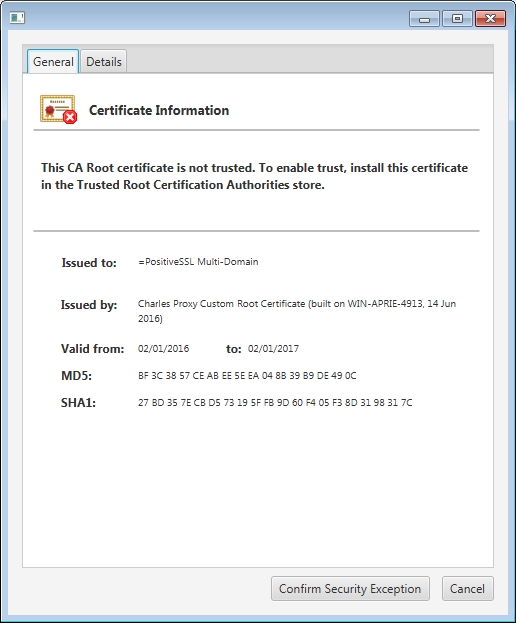
SSL Certificate Information
4.1.4. Changing How DNS Queries Are Done
By default, Cyber Triage uses Google Public DNS (IP 8.8.8.8) to resolve host names and IP addresses. Some environments block all external DNS queries and therefore Cyber Triage cannot access the server.
In these situations, you can manually change Cyber Triage to use cybertriage.com for DNS resolution.
To do this:
Open the AppData\Roaming\cybertriage\config\v3\config.yml file in the user folder that Cyber Triage runs as.
Find the line that has dnsProvider: “GOOGLE” and change it to dnsProvider: “CT”.