4.2. Security and Certificates
4.2.1. Access Control
The following principles are used to limit access to the data stored in the application:
The Standard versions will only have open, public network ports when the user is adding a host using PsExec or Live Manual. Otherwise, it should not be able to receive data from external hosts. Access is granted only by the user having interactive access to the host running Cyber Triage.
The Team versions have APIs that are listening for connections, but will first authenticate the user based on the Cyber Triage username and password. See Create and Manage Team Users for adding and managing those accounts.
Any user with access to the computer running Cyber Triage may have access to stored data based on their OS-level permissions.
4.2.2. Encryption
The following encryption is used in the application:
- Data in Transit:
Network traffic between the Server and Clients and between the Collector and the Server is encrypted with TLS 1.2. See below for information on verifying the certificates.
PostgreSQL: Traffic between the Server and PostgreSQL can be encrypted with TLS.
- Data at Rest: The following file-based encryption is used:
Output of Collector: The user can choose to encrypt the output with a 4096-bit RSA public key and 256-bit AES ECB symmetric encryption. See Configure Collector Output Encryption to configure this.
Secrets: Sensitive data is stored encrypted in Java Keystore.
Passwords: User passwords are stored as bcrypt hashes.
Once the data is on the Cyber Triage server, it is not stored encrypted within the database or local files. File system-level encryption should be used if all of your data at rest must be encrypted.
4.2.3. TLS Encryption
Cyber Triage uses TLS to encrypt various network communications:
Between the Collector and Cyber Triage
Between the Team Server and Clients
In most environments, there is nothing to configure. You just need to know about the certificate that was generated for you. But, you may need to configure Cyber Triage to know about a TLS intercept proxy, if you have one.
4.2.3.1. Certificate Verification
To prevent man in the middle attacks:
Cyber Triage generates a unique self-signed certificate for each application installation.
Cyber Triage applications connecting to the server will verify the hash value of the certificate they receive.
The Collector will be passed in the server’s certificate hash as a command line argument. If the certificate it receives in the TLS handshake is different, the connection will be dropped.
The Team Client will prompt the user to confirm the server certificate hash the first time it connects. Once that value is locally saved, the Client will use it to verify each connection. If the Client receives a new certificate during the handshake, it will prompt the user.
4.2.3.2. Configure Internal Intercept Proxies
If your network has a proxy that decodes TLS traffic, then you need to configure Cyber Triage to know about it. When configured, Cyber Triage will use the proxy certificate to validate the connection with clients and the Collector.
From the Options Panel, you can import the certificate used by the Proxy in the “System” / “Certificates” section.
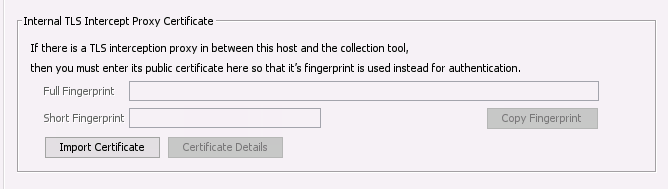
Add TLS Intercept Proxy Certificate
4.2.3.3. Using a Custom Certificate
Cyber Triage generates a unique self-signed certificate for each installation. You can use your own though.
This is most useful in a Team environment so that each web application user can trust the certificate used instead of getting a message about an insecure connection.
You can import your own from the “System” / “Certificates” section of the Options panel. Importing a certificate restarts Cyber Triage®, disconnects everyone who is signed in, and requires every browser and Collector to be told to trust the new certificate.
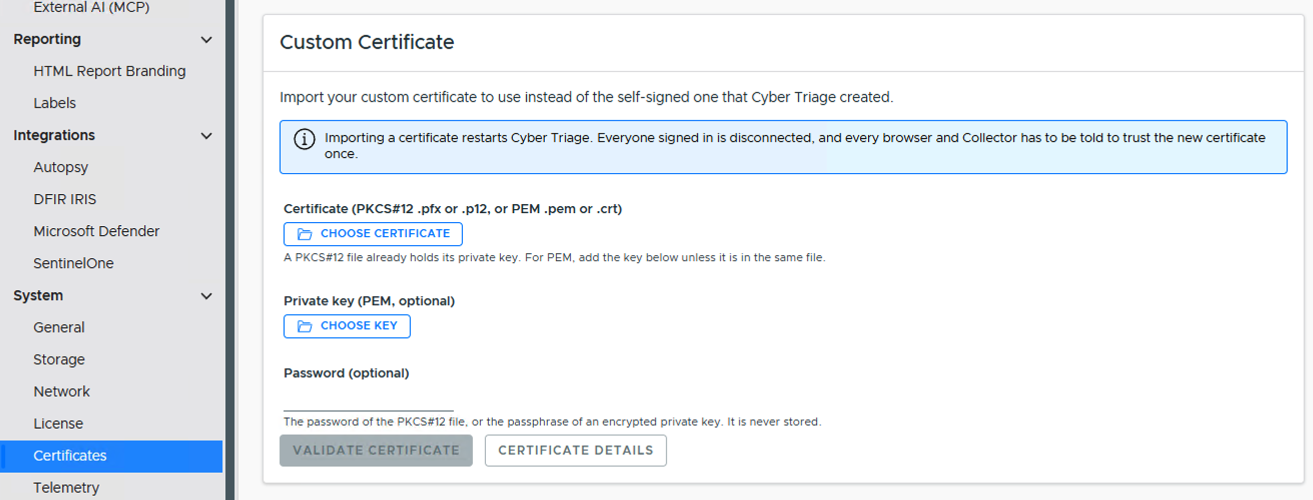
Custom Certificate
4.2.3.4. Exporting Self-Signed Certificate
Alternatively, you can export the self-signed certificate from Cyber Triage and add it to each host that your investigators use. They will then trust the certificate used by the Application.
You can get this certificate from the “System” / “Certificates” section of the options panel.
4.2.4. Logging and Monitoring
Logs are stored in the ‘var\log’ folder in the data directory (see Data Folder).
For a Team Server:
All API requests are logged
Default retention is 20 days
You need to choose and configure a log collector to send them to a central location. Examples.
You can review the log files for brute force attempts to guess the security tokens.
The ‘rest-api.log’ file will have errors when an incorrect token is used or non-existent host or incident names are used.
For example:
ERROR [11:23:01.522] [xx-85 - POST /api/app-config/validate-credentials] c.b.d.c.c.c.ConfigManagerServerImpl - AUTHENTICATION FAILURE. Reason: invalid user credentials - userId or password does not match.