3.3.2.5. Add EDR Telemetry Data
You can import data that was previously recorded by an EDR.
Note
This feature requires an Enterprise-tier license.
To use this feature you need to either:
Export data from the EDR console
Configure API access so that Cyber Triage can query it directly
Currently this feature supports Defender and SentinelOne.
3.3.2.5.1. Microsoft Defender
3.3.2.5.1.1. Import via API
Choosing the Defender tile from Add New Host brings up a single dialog with an Import Type toggle for API vs. CSV.
To import directly via API from the EDR server, you must first configure it. See:
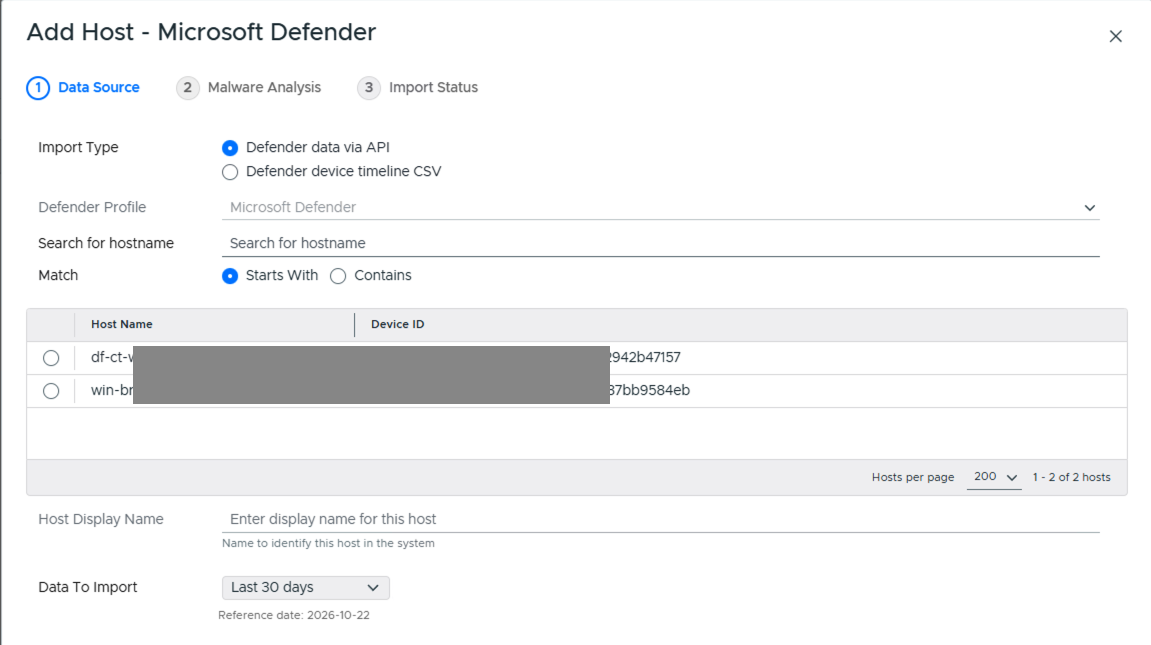
To import data, choose Defender data via API, then search for the hostname (using “Starts With” or “Contains”) and pick it from the results list. This list comes from Defender.
Choose how much data to import from the Data To Import dropdown (defaults to Last 30 days).
After pressing ‘Continue’, you will configure automated analysis settings (see Ingest-Time Settings).
3.3.2.5.1.2. Import via CSV
If you do not have access to the API, choose Defender device timeline CSV as the Import Type and export data from the EDR and import those files. See:
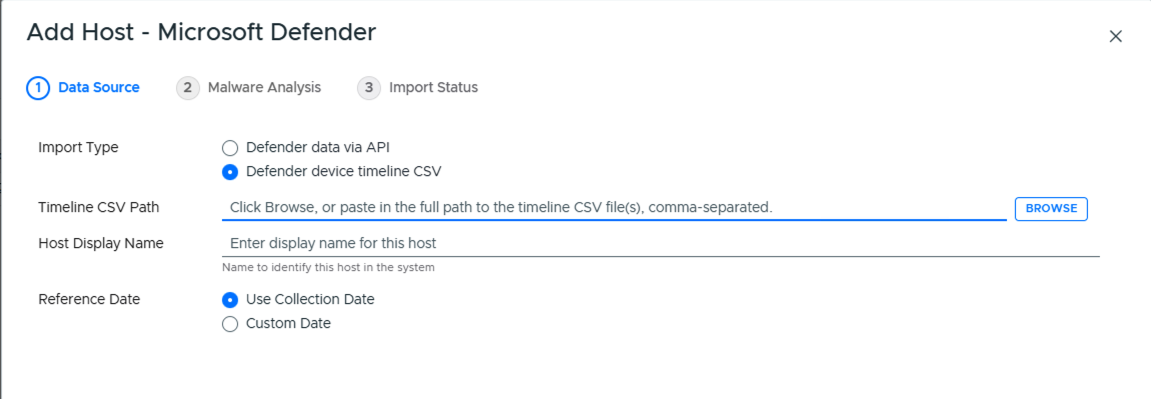
You can select multiple files as from different time periods as long as they are for the same host.
After pressing ‘Continue’, you will configure automated analysis settings (see Ingest-Time Settings).
3.3.2.5.2. SentinelOne
To import directly via API, you must first configure a profile. See Configure SentinelOne API Access.
Choose the SentinelOne tile from Add New Host, pick the SentinelOne Profile, then type in the Host Name field to search for and select the hosts you want (matches hostnames containing the text you type).
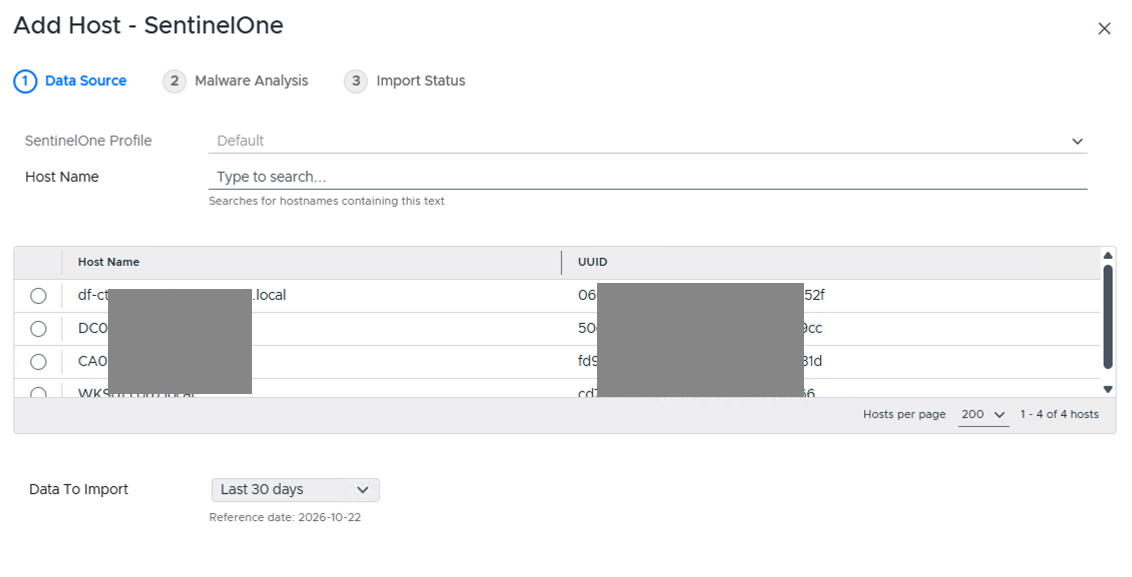
Add Host - SentinelOne
Choose how much data to import from the Data To Import dropdown (defaults to Last 30 days).
After pressing ‘Continue’, you will configure automated analysis settings (see Ingest-Time Settings).