3.3.2.6. Add a Disk Image
You can import a Windows disk into the system, which is is useful if a full disk image has already been performed of the system.
Note
Linux disk images are not supported. Linux is supported via UAC only.
Supported disk image formats:
Raw Single (*.img, *.dd, *.raw, *.bin)
Raw Split (*.001, *.aa)
EnCase (*.e01)
Virtual Machine Disk (*.vmdk)
Virtual Hard Disk (*.vhd, *.vhdx)
Watch the Cyber Triage Basics Course Disk Image video on this technique.
To import data from a disk image:
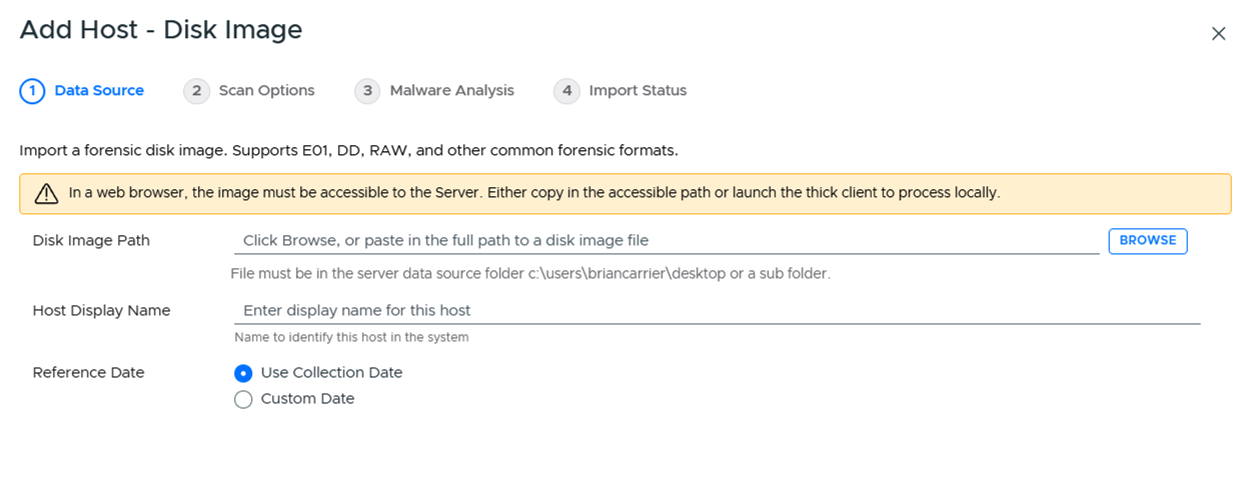
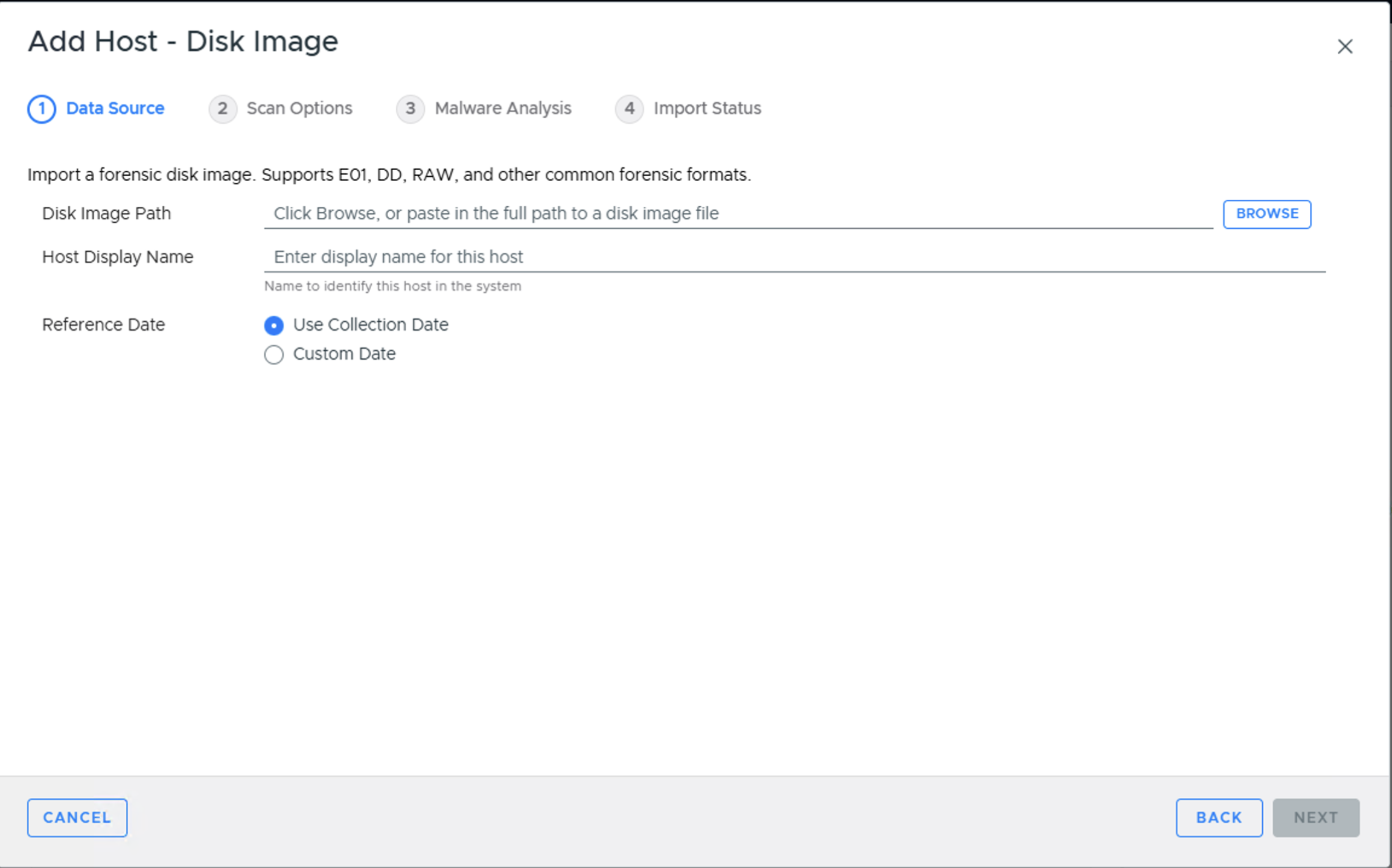
Choose the Disk Image button from the Add New Host area, browse to your image file, and enter a display name for the host (it can be a host name or more descriptive).
If you are using the Team Client, you will also have a Location choice between Local and Server Accessible. Choose Server Accessible to have the Server process the disk image instead of this client; the path must be within the Server’s configured data source folder (see Server Accessible Data Source Folder).
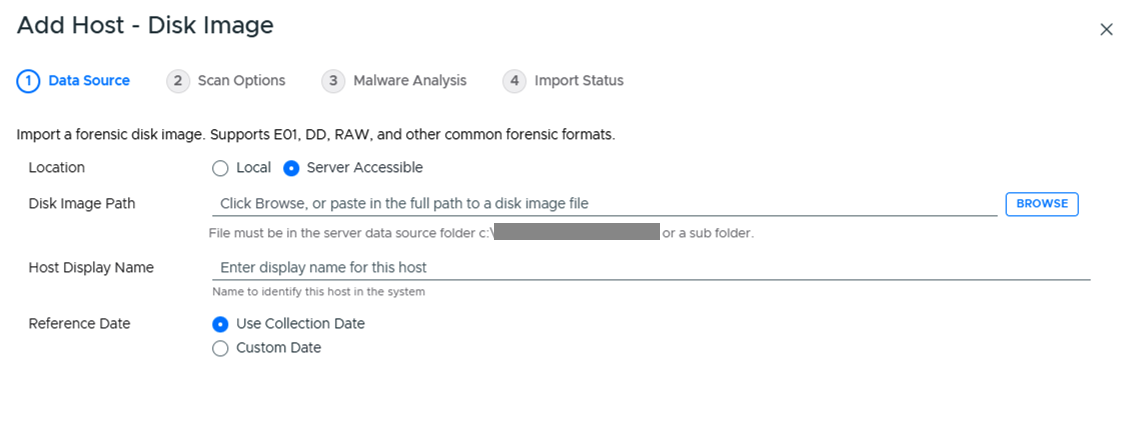
Server Accessible selected in the Team Client
If the Server has not enabled server-accessible data sources, Server Accessible will instead be disabled with a tooltip explaining why.
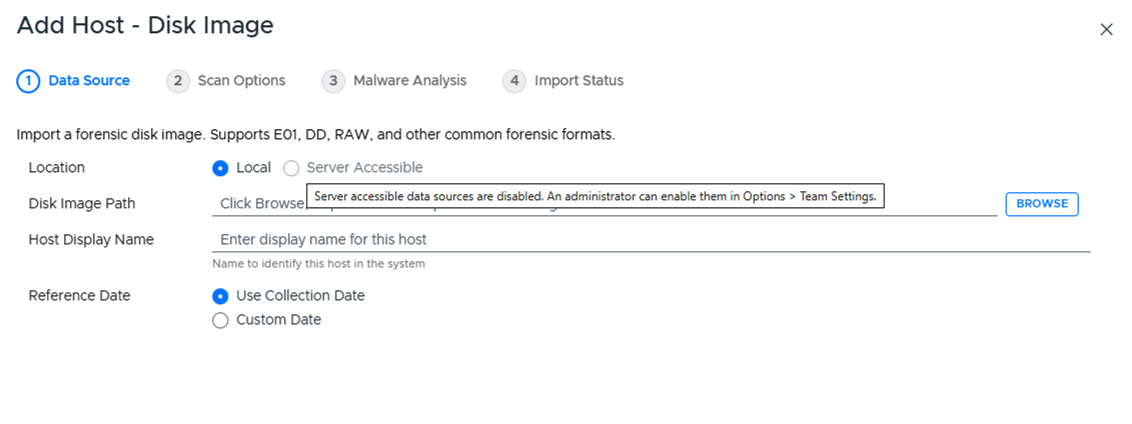
Server Accessible disabled
If BitLocker is detected, a BitLocker Password field will appear so you can enter the password to decrypt the volume. Cyber Triage will automatically attempt to decrypt BitLocker using the clear key first.
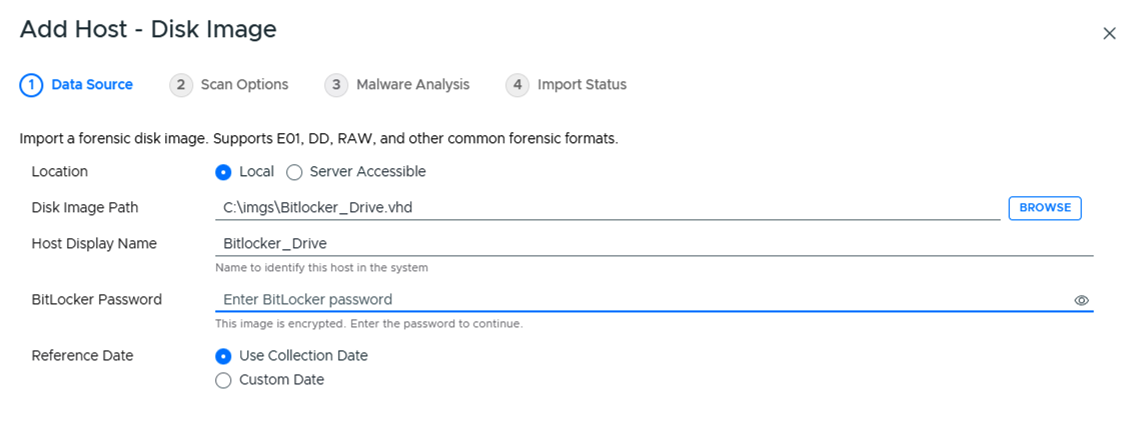
Press Continue to then configure what data types to collect (see Data Collection Types) and malware settings (see Ingest-Time Settings).
After collection has started, proceed to Host-level Examination for an overview of the analysis techniques.
There are some special considerations of disk images:
Not all files will be analyzed after importing the disk image. Only the files that the Collector was interested in will be, for example, malware scanned. You will have access to all content though as long as the disk image is still accessible. Some of the files are directly imported into Cyber Triage, but most of them will be available only from the disk image.
During the ingest, some files will be extracted from the disk image into the temp folder in your Data Directory (see Changing Where Data is Stored). This could cause local antivirus to flag files. You should good list this folder with your AV/EDR
If you are using the Team version of Cyber Triage, then the client will do the parsing of the disk image and send the results to the server. The client must continue to run until the disk image has been parsed.
3.3.2.6.1. Process Disk Image on Server
If you access Cyber Triage® through a web browser in a Team deployment, the disk image must be accessible to the Server, since the web app has no local client to read it from. Either supply a path in the Server’s configured data source folder (see Server Accessible Data Source Folder) or install and launch the Team Client to process the image locally.