3.3.2.7. Add a Memory Image
Memory image-based analysis allows you to review volatile data from a system and bypass advanced rootkits and malware (if you were able to get a full memory capture). Cyber Triage will not make an image of memory.
Cyber Triage uses two open source tools to parse Windows memory images:
Note
Linux memory images are not supported.
Supported memory image formats:
Raw (.img, .bin, .raw, .mem)
Lime (.lime)
AFF4 (.aff4)
.dmp
.vmem
.hpak
.E01
Watch the Cyber Triage Basics Course Memory video on this technique.
To import a memory image:
Choose the Memory Image button from the Add New Host area, browse to your memory image file, and enter a display name for the host (it can be a host name or more descriptive).
Choose what tool you’d like to use. MemProcFS has more complete support for Windows 10 and newer.
If you choose Volatility 2, you can also specify a profile and KDBG offset if auto detection is not working.
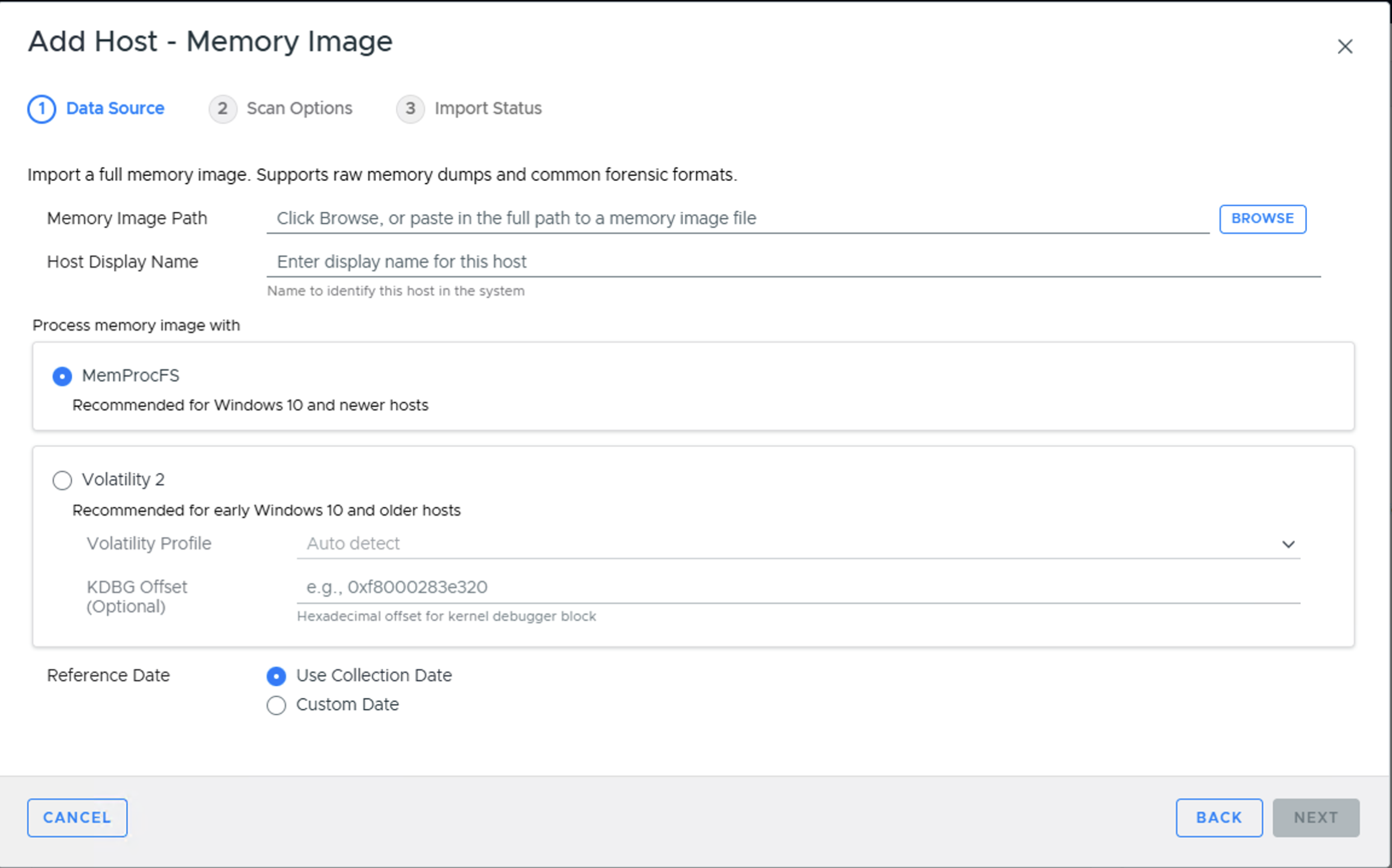
Press Continue to then configure what data types to collect (see Data Collection Types) and malware settings (see Ingest-Time Settings).
After collection has started, proceed to Host-level Examination for an overview of the analysis techniques.
If you are using the Team version of Cyber Triage, then note that the client will do the parsing of the memory image and send the results to the server. The client must continue to run until the memory image has been parsed.
If you access Cyber Triage® through a web browser in a Team deployment, the memory image must be accessible to the Server, since the web app has no local client to read it from. Either supply a path in the Server’s configured data source folder (see Server Accessible Data Source Folder) or install and launch the Team Client to process the image locally.
Note
A host created from a memory image will not have all of the data and fields that you’d see from the Cyber Triage® Collector. The interface will identify places that have incomplete data.