2.2.6. Install and Configure Cyber Triage Clients
Cyber Triage® Clients can be installed on any analysis system and do not require administrator access. See Architecture for when you need an installed Client versus using a web browser.
2.2.6.1. Installing the Team Client
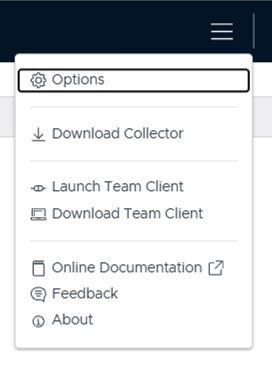
To get the Team Client, first login into the web app using your account. Open the hamburger menu in the upper right and choose Download Team Client.
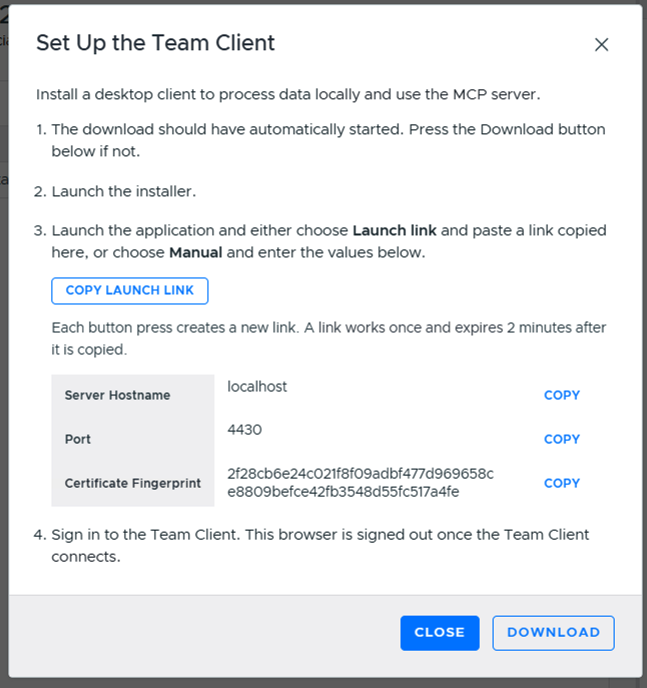
This opens the Set Up the Team Client dialog:
The download should start automatically. Press Download if not.
Launch the installer. It installs per-user, with no admin rights needed, at %LOCALAPPDATA%\Programs\CyberTriageTeamClient.
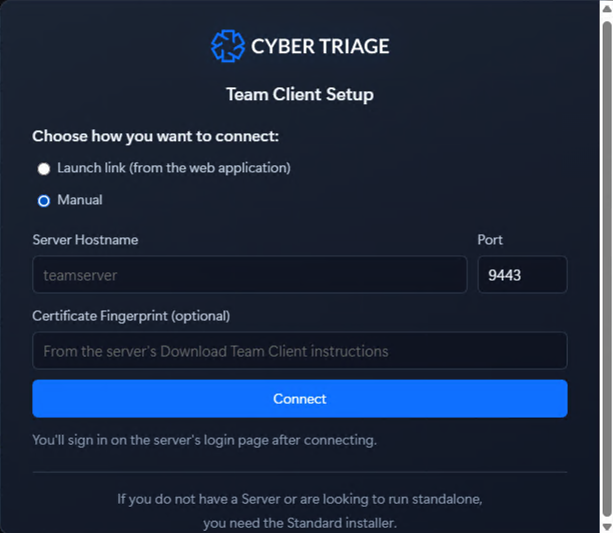
Launch the application and either choose Launch link and paste a link copied here, or choose Manual and enter the values below.
Sign in to the Team Client. This browser is signed out once the Team Client connects.
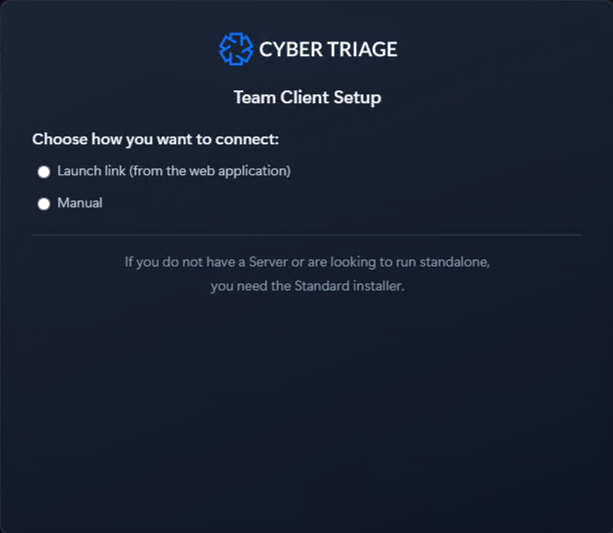
The installer itself asks you to choose how to connect:
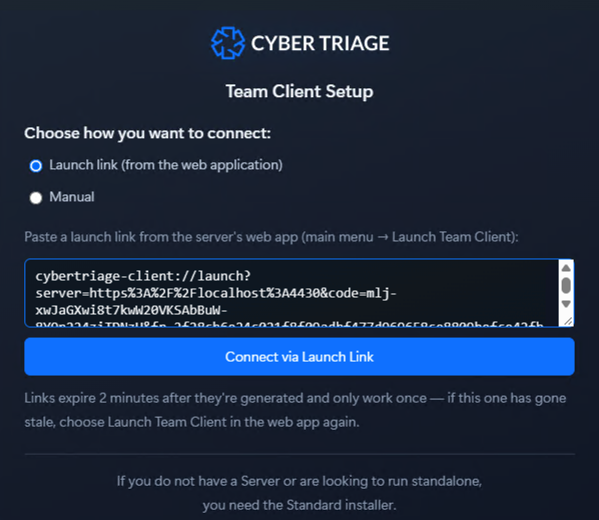
Launch link: paste a launch link copied from the Set Up the Team Client dialog above, then press Connect via Launch Link. Links expire 2 minutes after they’re generated and only work once - if yours has gone stale, choose Download Team Client or Launch Team Client in the web app again to get a new one.
Manual: enter the Server Hostname, Port, and optionally the Certificate Fingerprint (from the server’s Options panel), then press Connect. You’ll sign in on the server’s login page after connecting.
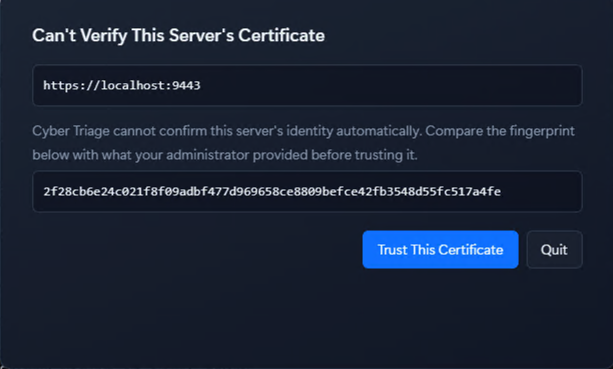
If the client can’t automatically verify the server’s certificate, you’ll be prompted to compare the fingerprint shown against the one from the server’s Options panel before trusting it.
2.2.6.2. Launching the Team Client
Once installed, there are two ways to use the Team Client:
Launch it directly (e.g. from the Start Menu) - you’ll need to log in manually each time.
From the web app, open the hamburger menu and choose Launch Team Client. This should automatically launch the installed version and signs you in. If the button doesn’t launch the client, use Copy Launch Link instead and paste it into the client manually. This browser session signs out once the client logs in.
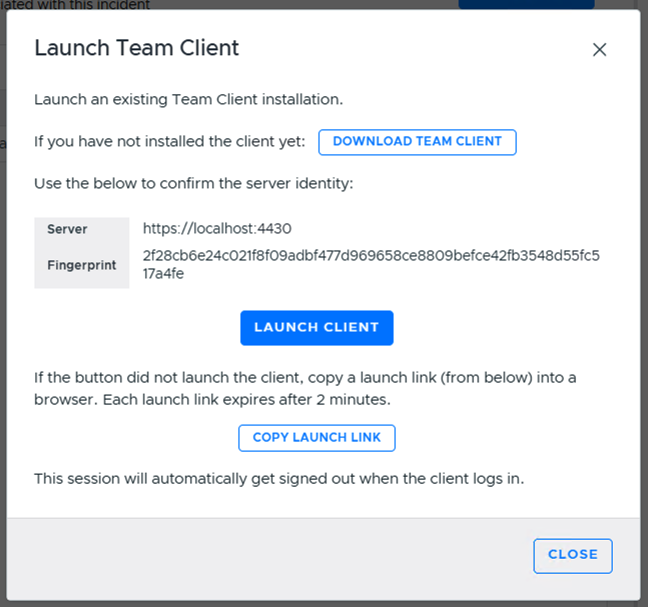
The Team Client does not save credentials between sessions - every launch, direct or via the web app, requires either a fresh login or a fresh launch-link handoff.
2.2.7. Exclude Team Client Install Folder from AV and EDR
You may need to exclude the Team Client’s install folder from scanning by your AV/EDR, for the same reasons as the data folder (see Exclude Data Folder from AV and EDR). By default, it is installed per-user at:
%LOCALAPPDATA%\Programs\CyberTriageTeamClient