2.2.4. Cyber Triage Server Installation
The Cyber Triage Server needs to be running whenever you want to anlyze or review data. You should configure it to run as a Windows service so that it starts when the server starts.
2.2.4.1. Installing The Cyber Triage Server
See Upgrading Installations if you are upgrading an existing installation.
- Launch the Server installer, such as CyberTriage_Server_Setup-4.0.0.exe.
NOTE: As of v4, the Server is a different installer than Standard
- It will prompt you for the account to run the service as. You cannot complete the installation until you have the service configured. User names should be in the format of:
.localuser
DOMAINuser
When it completes, it will start the server as a service (though startup could still silently fail).
Give it a couple of minutes to start and then open a web browser to https://<server>:9443. Refer to the Server Service Won’t Start section to diagnose any errors.
2.2.4.2. Configure Local Firewall
The Cyber Triage Server will be listening on two ports. Make sure your host-based firewall allows incoming TCP connections for ports:
443 (Ingest from Collectors)
9443 (Web app, REST API, and thick clients)
2.2.4.3. Initial Server Configuration
After the installer completes, point a web browser at:
https://<server>:9443
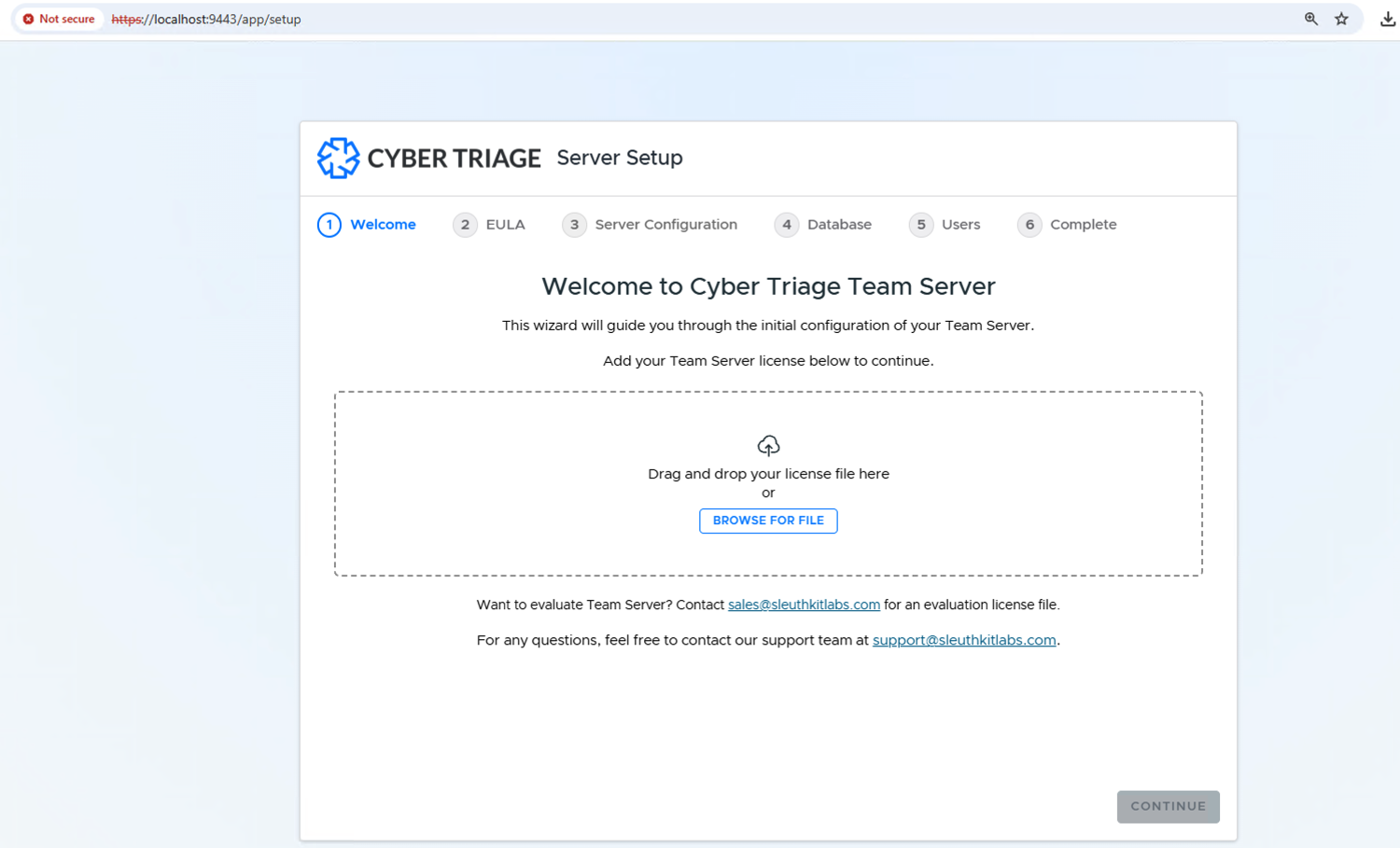
If it has not been configured yet, it will bring you to a setup wizard with 6 steps: Welcome, EULA, Server Configuration, Database, Users, and Complete.
Warning
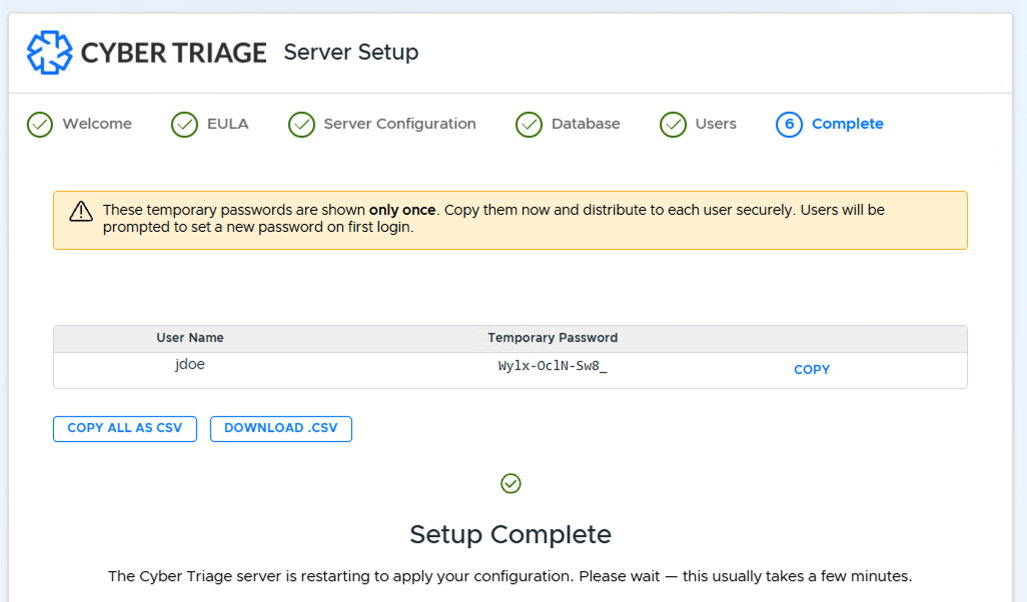
Make sure to safely record the administrator password you choose in step 3, as well as the automatically-assigned temporary passwords for the users you create in step 5. They are not shown again after setup completes.
Welcome: upload your Server license file. It should have _server in the name.
EULA: accept the End User License Agreement.
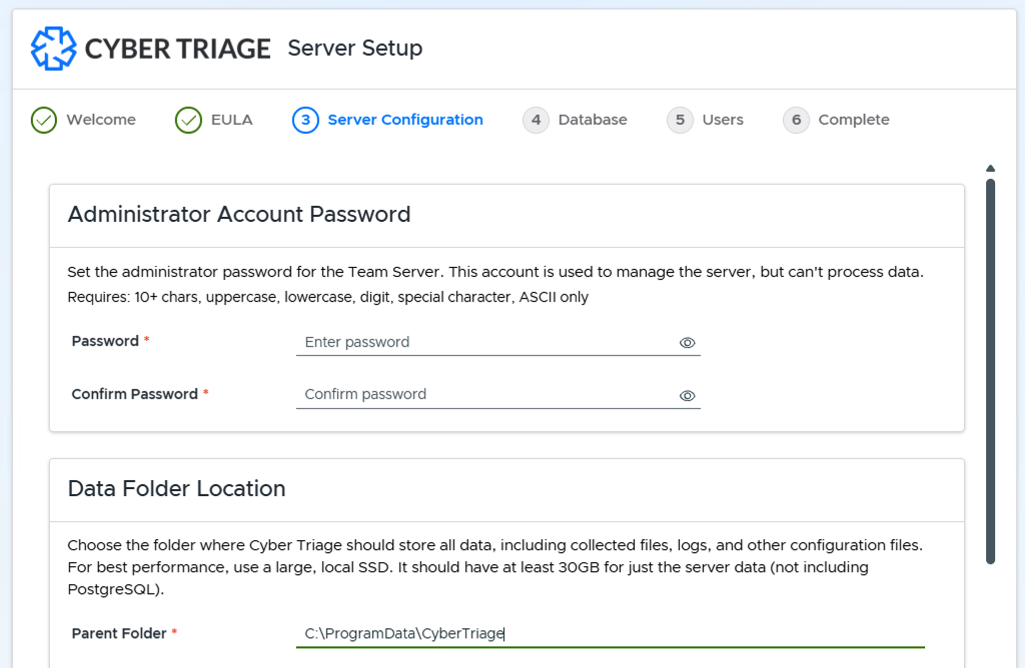
- Server Configuration: has two panels:
Administrator Account Password: sets the administrator password for the Team Server. This account cannot process incidents, but is used to administer the system. You can later grant other accounts administrator privileges. Requires 10+ characters with uppercase, lowercase, a digit, and a special character (ASCII only).
Data Folder Location: the folder where Cyber Triage will store all data, including collected files, logs, and other configuration files. For best performance, use a large, local SSD with at least 30GB free for server data (not including PostgreSQL). The default is C:\ProgramData\CyberTriage. You can later change this and manually move the contents.
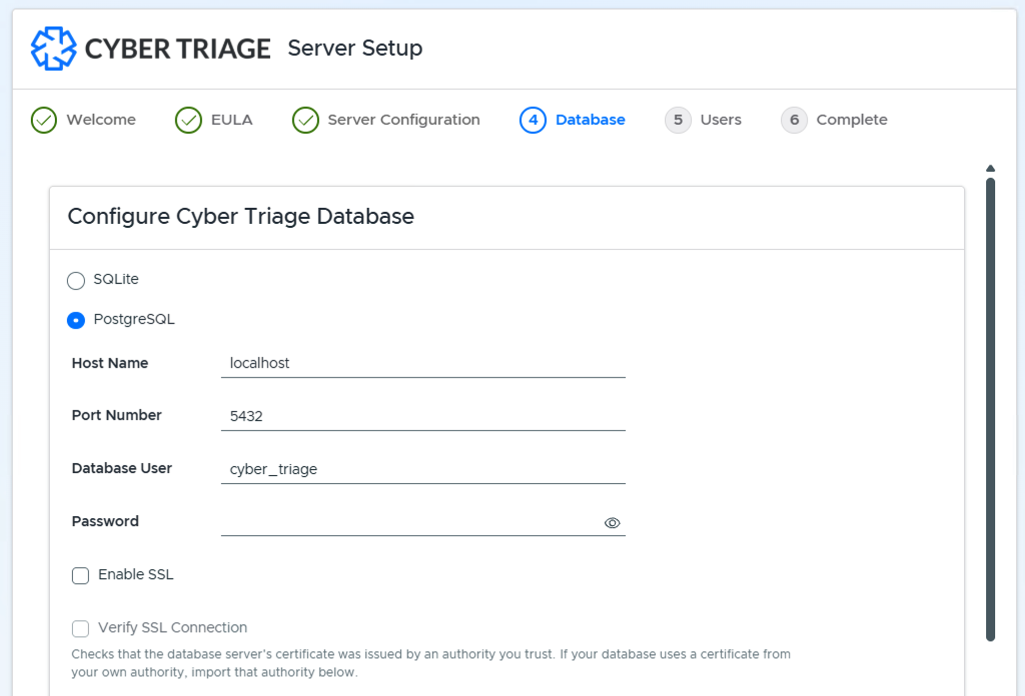
- Database: choose SQLite or PostgreSQL. Choose SQLite if you are just evaluating. If you choose PostgreSQL, configure:
Host Name: use localhost if you are running it on the same host.
Port Number: defaults to 5432.
Database User: defaults to cyber_triage.
Password
Enable SSL: check this only if you followed the instructions and configured PostgreSQL to listen for SSL.
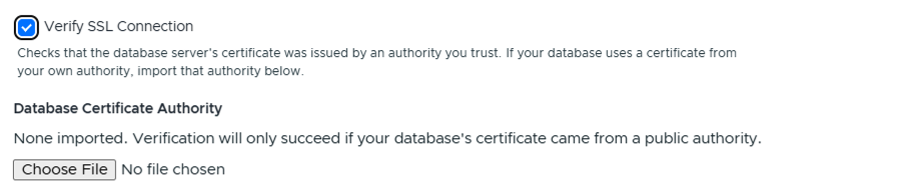
Verify SSL Connection: checks that the database server’s certificate was issued by an authority you trust. Check this only if you imported the PostgreSQL certificate into Cyber Triage using the above instructions. If your database uses a certificate from your own authority, enabling this reveals a Database Certificate Authority option to import it - without one imported, verification will only succeed if your database’s certificate came from a public authority.
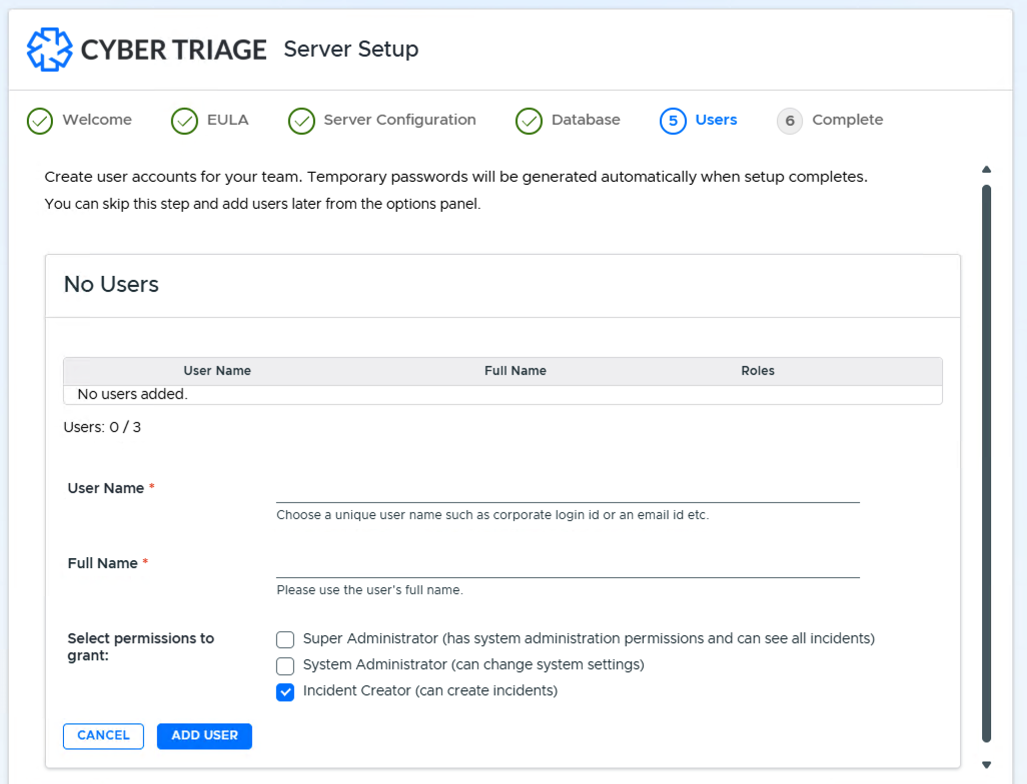
Users: create at least one user account. A password is automatically assigned to each user, and they will reset it the first time they log in. See Create and Manage Team Users for details on accounts and permissions.
Complete: shows the temporary password for each user you created. These are shown only once - copy them now (individually, as CSV, or by downloading a CSV file) and distribute them to each user securely. The server then restarts to apply your configuration, which can take a few minutes.
2.2.4.4. Additional Configuration
While not in the initial setup wizard, there are a few other settings to be aware of.
Self Signed Certificate: Cyber Triage will generate a self-signed certificate for your installation. Web browsers, clients, and Collectors will see this when they connect. You can install your own certificate if your organization issues them. You can do this from Options -> General -> Certificates.
Internal Proxy: If you have a TLS intercept proxy in between the Server and the Clients, configure Cyber Triage with the proxy’s certificate. See Internal Intercept Proxies.
2.2.4.5. Server Service Won’t Start
If the service for the server doesn’t automatically start, then:
Go to the Windows Services Manager and manually try to start it. It is set to “delayed auto-start”, so it may take a bit to start.
Check Windows Event Viewer Logs (Application).
Check logs in C:\ProgramData\CyberTriage\var\log.
To change the service account password, use services.msc and the Log On tab for the service.
If you cahnged the service account and the new one can’t access the data folder, then grant it permission by calling the following from an administrator prompt: CyberTriageEngine.exe –grant-data-dir –user=DOMAIN\USER.