3.3.5. Linux UAC Output
3.3.5.1. What is it
Import the output of the Linux UAC tool into Cyber Triage. The files in the output will be parsed and artifacts created and analyzed.
Watch the Cyber Triage Basics Course Linux UAC video on this technique.
3.3.5.2. How to Get The Data
Use the “-p full” option when you run the collection tool. Otherwise not enough data will exist for Cyber Triage to analyze.
./uac -p full /tmp
3.3.5.3. Where To Put Your Data
Extract the UAC contents to a local folder:
mkdir host1_uac
cd host1_uac
tar -zxvf ..\uac-host1-20240426125735.tar.gz
The following locations are supported based on your access method:
Application |
Supported Locations |
|---|---|
Standard |
Locally accessible |
Team, Web Client |
Not supported |
Team, Local Client |
Locally Accessible |
If you are using the Team with a local client and the data is locally stored, then the client will do the parsing and send the results to the server. The client must continue to run until the parsing is complete.
3.3.5.4. How to Import
To add Linux UAC data, choose Add New Host from the Incident Overview and choose the Linux - UAC box.
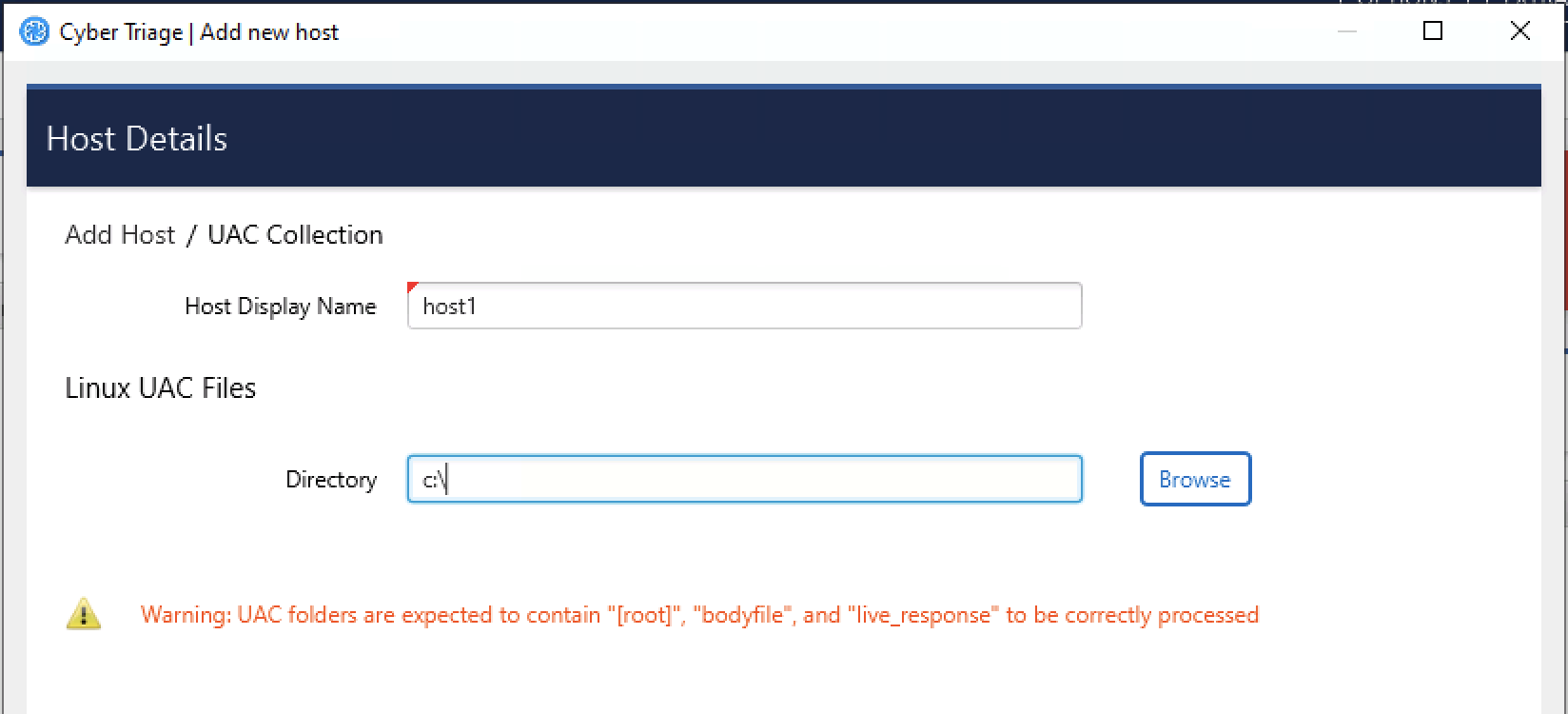
Browse to the folder the UAC data was extracted to (it should contain subfolders for “[root]” or “bodyfile”).
Update the display name and reference date as needed.
Press Continue to then configure what data types to collect (see Specifying Data Collection Types) and malware settings (see Ingest-Time Settings).