2.2.8. Team-Only Settings
This section covers settings that are only relevant to Team deployments.
2.2.8.1. Allow Collector To Initiate Ingests
By default, the Cyber Triage Server accepts connections from the Collector when initiated from an “Add Host” wizard. The Team Server can be configured to always accept connections, as long as it has a “secret”.
This feature is useful when deploying the Collector via EDR or other IT infrastructure.
To enable this feature, go to the “Team Settings” section of the options panel and enable “Allow collections to be automatically created by Collector”.
Choose the default malware scan settings and record the “key” and “cert_hash”. You’ll need that when you start the collections.
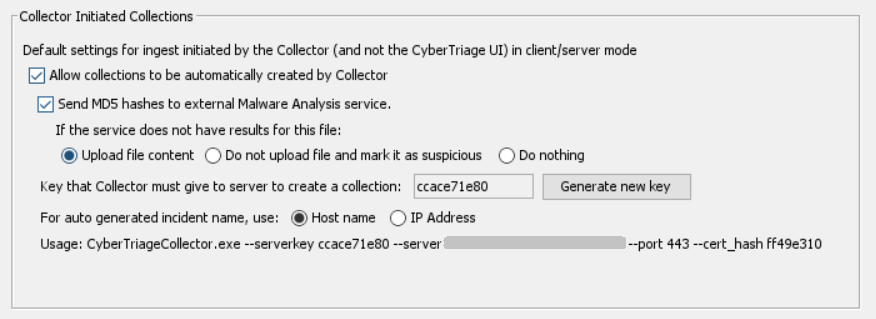
Refer to Launch via EDR for steps on launching the Collector.
2.2.8.2. REST API Access
Note
This feature requires an Enterprise-tier license.
The Server has a REST API on port 9443 that clients and other web services can connect to. The specification can be found at REST API Reference.
You can enable it in the “Team Settings” options panel.
2.2.8.3. Incident-Level Access Control
This feature allows you to control which users have access to an incident.
Note
This feature requires an Enterprise-tier license.
To use this feature, you must enable it from the Options panel, under “Users and Permissions” / “Incident Access Control”.
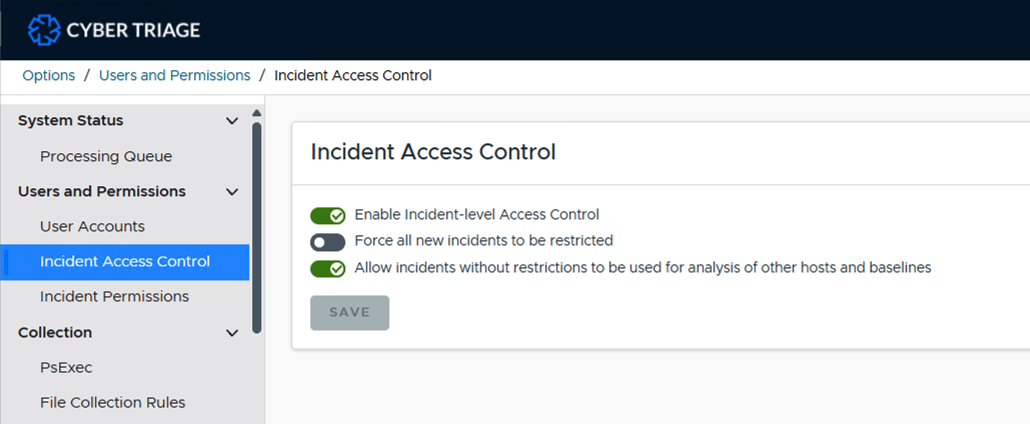
You have three options:
Enable Incident-level Access Control This enables the feature so that there is the option to restrict access. Turn this on if you have the license and want to use it.
Force all new incidents to be restricted This forces every new incident to start restricted. Turn this setting off if you want to have some incidents with restrictions and some that everyone can open.
Allow incidents without restrictions to be used for analysis of other hosts and baselines This setting allows you to control if your unrestricted incidents should have data sent to the central analysis database. Law enforcement groups that are concerned about using data from past cases may turn this setting off.
After you have enabled this, then make sure to also review:
2.2.8.4. Maximum Concurrent Ingests
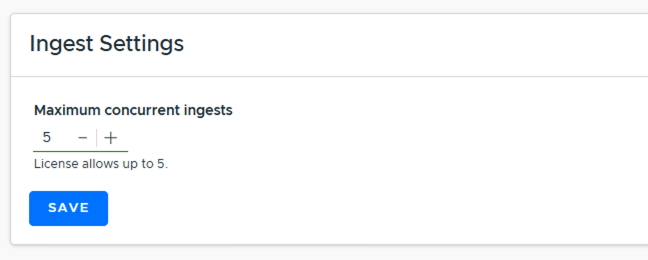
The Team Server limits how many ingests can run at the same time. This can be configured, up to the limit allowed by your license, from the System / “Team Settings” section of the options panel.
2.2.8.5. Server Accessible Data Source Folder
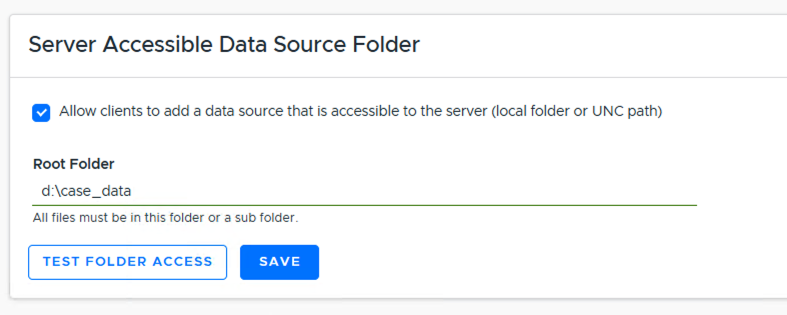
If you have a Team environment and want to allow server-side processing of data, you can enable a root folder in the “Team Settings” section of the Options panel.
Lets clients add a data source (local folder or UNC path) that is directly accessible to the server, instead of uploading/streaming the data. All files must be within the configured root folder or a sub-folder of it.
This must be enabled here before the Server Accessible file location option (see Collector Output) can be used when adding a host. If it is not enabled, the Disk Image and Cyber Triage File dialogs will show “Server accessible data sources are disabled. An administrator can enable them in Options > Team Settings.”
2.2.8.6. Team Server Status
You can get basic status of the Cyber Triage Server by pointing a web browser at: https://SERVER_HOST_NAME:9443/api/admin/service-status